Microsoft Teams Weaponizable File Protection: Admin Settings and Blocked Extensions
- Sudha
- 365 views
Teams blocks risky attachments before delivery. Admins can check the setting, review the default extensions and prepare for custom lists planned for December 2026.
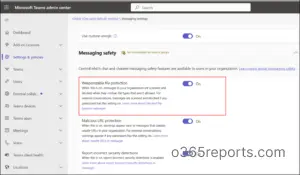
Microsoft Teams’ Weaponizable File Protection blocks messages that contain file types commonly associated with malware before they reach conversation participants. For administrators, the key checks are whether the protection setting is enabled, which extensions it blocks and how the planned custom-list option could affect future updates.
The feature applies to attachments in Teams conversations. When a message includes a blocked file type, Teams prevents delivery and displays an alert to the sender and recipients. The sender can edit the original message, remove the attachment and resend it. Recipients can’t view the message content or download the file, and the notification they see may vary by Teams client version.
Why restrict file types in Teams?
Attachments can introduce malware into routine work conversations, particularly when users mistake a harmful file for an ordinary project document. Blocking selected extensions reduces the chance that users will share or open files commonly linked to malicious software, including scripts and executable formats.
Organizations may also use file restrictions to limit how sensitive information is shared. If particular formats are unsuitable for conversation attachments under an organization’s internal practices, administrators can include them in a block list. That flexibility matters because the files one organization considers acceptable may not suit another’s sharing requirements.
How protection works across organizations
Teams checks messages and attachments before delivery. If a file’s extension matches a blocked type, the entire message is held back, with an alert explaining the restriction. The protection therefore affects both the sender’s attempt to share the attachment and recipients’ ability to access it.
External conversations receive the same protection when at least one participating organization has Weaponizable File Protection enabled. In that case, a message containing a blocked file type is prevented from reaching all conversation participants, regardless of which organization the sender belongs to. Administrators working with external collaborators should account for that shared effect when explaining why an attachment may not arrive.
Default extensions and planned customization
Enabling the feature applies Microsoft’s default list of blocked extensions. It includes formats such as exe, dll, bat, cmd, msi, reg, vbs, js-adjacent script formats such as wsf, and macro-enabled docm files. The full default list is:
ace, ani, apk, app, appx, arj, bat, cab, cmd, com, deb, dex, dll, docm, elf, exe, hta, img, iso, jar, jnlp, kext, lha, lib, library, lnk, lzh, macho, msc, msi, msix, msp, mst, pif, ppa, ppam, reg, rev, scf, scr, sct, sys, uif, vb, vbe, vbs, vxd, wsc, wsf, wsh, xll, xz, z
Microsoft plans to roll out an option to customize the blocked extensions in early December 2026. Administrators will be able to add extensions, including commonly used document formats such as Word, Excel and PDF files where an organization’s requirements call for those restrictions. The custom-list interface will appear after the rollout.
There’s a trade-off to plan for: once an organization customizes the list, it will use that list and will no longer automatically receive future updates to Microsoft’s recommended default list. Teams considering customization should account for the ongoing work of reviewing and maintaining their chosen extensions.
Check the setting in Teams admin center
Weaponizable File Protection is enabled by default as part of Teams messaging safety protections. Teams Administrators and Global Administrators can check its status in the Teams admin center. The listed eligible licences are Microsoft 365 F1, F3, E3 and E5; Entra ID P1 and P2; EMS E3 and E5; and Office 365 F3.
- Sign in to the Microsoft Teams admin center.
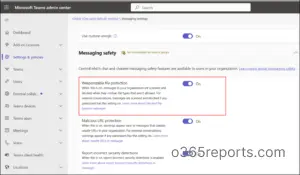
- Go to Settings & policies > Messaging > Messaging safety.
- Check whether Weaponizable file protection is switched on.
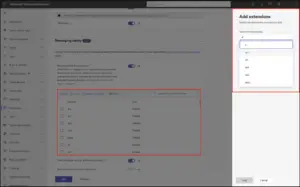
After the custom-list option becomes available, administrators can open the configuration under Weaponizable file protection, add extensions individually and select Save. Until then, the described customization steps aren’t available in the admin center.
Configure and verify with PowerShell
Administrators can enable the protection at the organization-wide Global level with the Microsoft Teams PowerShell module. After connecting with an appropriate administrator account, run:
Set-CsTeamsMessagingConfiguration -FileTypeCheck "Enabled" -Identity Global
This enables the feature using Microsoft’s recommended default blocked-extension list. To check the current setting, run:
Get-CsTeamsMessagingConfiguration -Identity Global | Select-Object FileTypeCheck
For day-to-day administration, verify the enabled state and make sure help desk staff know what senders and recipients will see when a message is blocked. Before adopting a custom list, decide who will maintain it and how the organization will account for future changes to Microsoft’s default list.