Microsoft Teams Adds Organization-Specific Scores for Third-Party Apps
- Pavee
- 989 views
Teams admins can score eligible apps against their own requirements. Review requirement-level results too: a percentage alone can hide missing or unavailable information.
Microsoft Teams now gives admins an organization-specific way to compare eligible third-party apps and agents against selected security, compliance, and permission requirements. The Organization Evaluation Score for Apps and Agents assigns each eligible app a percentage and shows which criteria it meets, falls short of, or lacks enough information to assess.
That score can help make app reviews more consistent across an IT team. It doesn’t approve or block an app, and it isn’t a complete security assessment. Admins still need to examine the details behind the number and decide whether the app is suitable for their organization.
What the score measures
The feature uses requirements selected by the organization, then evaluates eligible apps using the security and compliance information available to Teams. Admins can view the score on the Manage apps page in the Teams admin center. The feature is on by default, so there’s no separate setting to enable it.
Organizations can choose criteria related to areas such as compliance, data residency, permissions, and data protection. The result reflects how many of the selected requirements an app meets; it doesn’t express a universal judgment about the app.
For example, an organization could select three requirements: GDPR-related compliance, SOC 2 assurance, and data residency. If an app meets the first two but not the third, its score would be 67%. Another organization selecting only the first two could see the same app score 100%. Each percentage reflects the organization’s chosen criteria.
This makes the score useful for comparing apps against a consistent internal checklist. It also means the checklist itself matters: a score is only meaningful in the context of the requirements the organization has configured.
Which apps receive a score
A listing on the Manage apps page doesn’t guarantee an evaluation score. Teams displays one only when all three conditions apply:
- The app or agent is a third-party application.
- Security and compliance information is available for it.
- It isn’t already available in the organization for anyone to install or use.
An app without a score hasn’t necessarily failed an assessment. It may fall outside the feature’s eligibility conditions, or Teams may not have the information needed to evaluate it. Admins should treat the score’s absence as a reason to check the app’s details, not as a result in itself.
Set the organization’s evaluation requirements
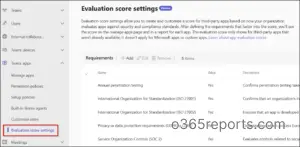
To choose the criteria, sign in to the Microsoft Teams admin center, open Teams apps in the left navigation, and select Evaluation score settings. That page contains the available predefined security, compliance, and permission-related requirements.
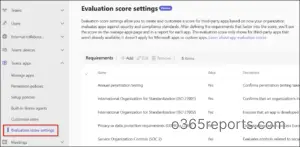
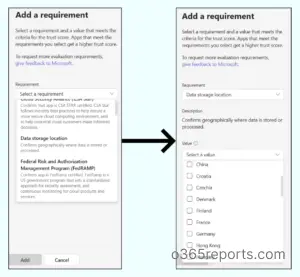
Select Add to open the list of requirements. Choose the criteria that match the organization’s standards, configure their values, and select Add to save them. Requirements can be changed later: select one, choose Edit, make the changes, and save. To remove a criterion, select it and use the remove icon. The selected requirements can also be exported as a CSV file.
Changing these settings changes how Teams calculates the evaluation score. It doesn’t change the security, compliance, or permission information Teams has for an app or agent.
Compare scores and inspect the details
After requirements are saved, open Teams apps > Manage apps in the admin center. The Evaluation score column shows the percentage for each eligible app or agent. Admins can sort the column from highest to lowest score or in the opposite order.
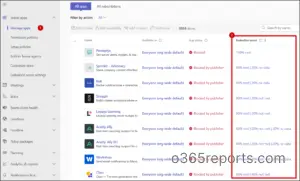
To filter the list by score, select the filter icon, choose Evaluation requirements met, set the condition to greater than or equal to a percentage, enter the percentage, and select Apply.
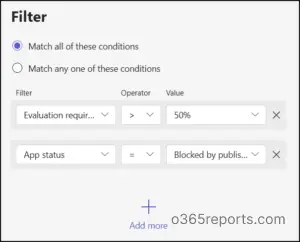
Use the percentage to narrow the list, then inspect the app’s report before making a decision. The score shows how much of the selected checklist an app meets; it doesn’t identify every gap on its own.
To see the requirement-by-requirement results, select the app or agent on the Manage apps page and open the Evaluation score report (Preview) tab in its details. The report includes the overall score and a Score requirements results section. Each requirement is marked Met, Not met, or No data.
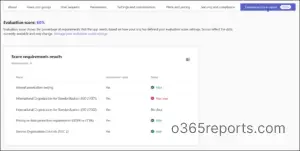
- Met means the available information indicates the app satisfies the configured requirement.
- Not met means the available information indicates it doesn’t satisfy that requirement.
- No data means Teams doesn’t have enough information to assess the requirement. It doesn’t mean the app failed.
Pay attention to No data results. An app might meet its other criteria while lacking information about data residency, for example. The report exposes that uncertainty so admins can follow up with the app vendor before relying on the overall percentage.
Understand the difference between the two tabs
The app details also include a Security and Compliance tab. It presents security and trust information available for the app, such as Microsoft 365 certification status, publisher attestation, and other security and compliance attributes.
The evaluation report uses available information to check the app against the organization’s chosen requirements and calculate a score. Put simply, one tab presents app information; the other shows how that information compares with the organization’s criteria.
Use the score as review evidence
Teams doesn’t take action on an app based on its evaluation score. Admins remain responsible for reviewing the results and deciding whether the app should be allowed. The score also doesn’t replace a detailed security assessment, penetration test, or independent certification. A high percentage doesn’t guarantee that an app is risk-free, and a low one doesn’t automatically mean it should be rejected.
Results can change when the information available about an app changes. Reviewers should therefore treat the score and its requirement-level details as an aid to the approval process, rather than a permanent verdict. The practical next step is to configure criteria that reflect the organization’s needs, then investigate unmet requirements and missing data before deciding whether an app belongs in its Teams environment.