Configure Microsoft Purview DLP Rules for Copilot Cowork
- AIMA
- 460 views
Set prompt, web search and labeled content controls for Copilot Cowork, with clear limits on detection and policy scope.
Copilot Cowork can turn an employee’s request into a chain of work across Microsoft 365: find information, draft communications, update documents and coordinate follow-up. That reach makes Data Loss Prevention (DLP) worth configuring before teams rely on Cowork for sensitive workflows. Microsoft Purview DLP offers three controls: block prompts containing selected sensitive information, stop external web searches for those prompts, and keep Cowork from using content in files and emails with chosen sensitivity labels.


What the controls cover
Copilot Cowork uses Work IQ to interpret delegated tasks in the employee’s work context. It can draw on relevant email, Teams conversations, meetings, files and organizational data, and may also use external web sources. It can then create or update documents, draft and send email, schedule meetings, post Teams messages and prepare outputs such as reports or presentations.
That means a request can involve more than the text entered in a prompt. The DLP controls described here target specific parts of that process, so administrators should match each rule to the risk they intend to address:
- Prompt processing: Block Copilot from processing prompts that match selected sensitive information types (SITs), such as credit card numbers.
- External web searches: Prevent Cowork from performing web searches when a prompt matches selected SITs. Cowork can respond using internal Microsoft 365 data the user can access.
- Knowledge sources: Prevent Cowork from using content in files and emails marked with selected sensitivity labels. It may still display a file or email name as a reference, while leaving the protected content out of its response.
These settings are available through the Microsoft 365 Copilot, Copilot Chat, and Copilot Cowork location in DLP policies. The supported experiences also include Microsoft 365 Copilot, Copilot Chat, Copilot Cowork, Copilot in Word, Copilot in Excel and Copilot in PowerPoint. During the preview, Word, Excel and PowerPoint users may not see a notice explaining that DLP blocked a prompt; Copilot will still block it and won’t generate a response.
If your organization already has DLP policies for Microsoft 365 Copilot and Copilot Chat, those policies also apply to Copilot Cowork. A separate Cowork policy isn’t required for those protections.
Check roles and licenses first
Creating or editing the policy requires an account assigned one of the eligible roles or role groups listed below:
- Microsoft Entra AI Administrator
- Purview Data Security AI Admin or the Purview Data Security AI Admins role group
- Purview Compliance Administrator or Purview Compliance Data Administrator
- Purview Information Protection or Purview Information Protection Admin
- Purview Security Administrator
- Microsoft Entra Global Administrator
The eligible license list includes Microsoft 365 E5/A5/G5/E3/A3/G3, Microsoft 365 Business Premium, Office 365 E5/A5/G5/E3/A3/G3, Microsoft 365 E5/A5/G5/F5 Compliance or F5 Security & Compliance, and Microsoft 365 E5/A5/F5/G5 Information Protection and Governance.
Create the policy and select its scope
- Sign in to the Microsoft Purview portal and open Data Loss Prevention.
- Choose Policies, then Create policy, then Enterprise applications & devices.
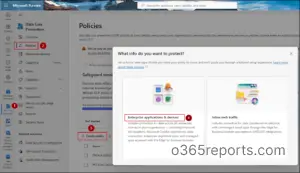

- Choose Custom under Categories, select Custom policy, and continue. This is the template that supports the Microsoft 365 Copilot and Copilot Chat location. Name the policy.
- Optionally add administrative units to limit the scope of policy management.
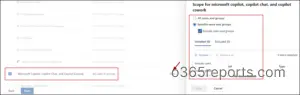
- On Choose where to apply the policy, select Microsoft Copilot, Copilot Chat, and Copilot Cowork. Selecting this location disables the other locations; the policy can use only one location at a time.
- Use Edit to include or exclude users and groups within the policy scope, then select Done.
- On Define policy settings, keep Create or customize advanced DLP rules selected and continue.
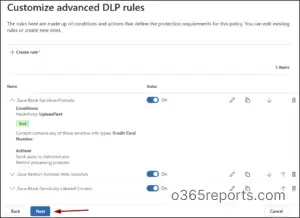
- On Customize advanced DLP rules, select Create rule.
Build three rules for the three controls
Keep the protections in separate rules within the same policy. A rule can’t combine SIT and sensitivity label conditions, and prompt processing and web search restrictions must also be configured separately.
Block prompts containing sensitive information
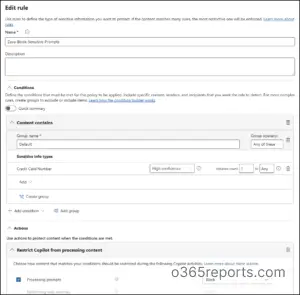
For example, an organization might allow Cowork to help investigate payment issues while preventing employees from entering credit card numbers in prompts. Create a rule and set its condition to Content contains > Sensitive information types. Select Credit Card Number. Under Actions, choose Restrict Copilot from processing content > Processing prompts, then save.
When Processing prompts is selected, Performing Web Searches is unavailable in that rule. Add a separate rule for the web search control.
Stop external searches for sensitive prompts
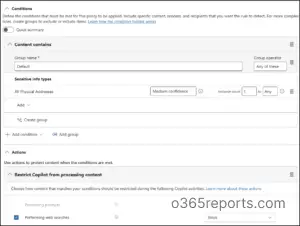
If employees may include customer addresses in requests for location-specific research, a separate rule can prevent those details from going to external search providers. Set the condition to Content contains > Sensitive information types, and select All physical Addresses. For the action, choose Restrict Copilot from processing content > Performing Web Searches, then save. Cowork can use internal Microsoft 365 data the user has access to when responding.
Keep labeled files and emails out of responses
To prevent Cowork from using selected protected files or emails, create a rule with the condition Content contains > Sensitivity labels and select the labels to restrict.
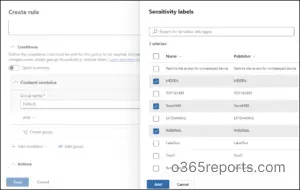
Choose Restrict Copilot from processing content > Accessing knowledge sources as the action, then save. This action is available with sensitivity labels as the condition; it isn’t available with SIT conditions.
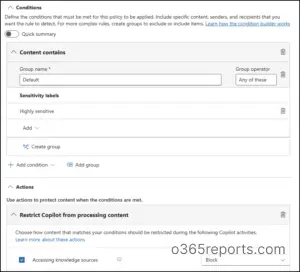
After saving the three rules, continue to the policy mode page. Choose whether to run the policy in simulation mode or turn it on, review the configuration and select Submit.
Know the detection limits and monitor activity
Prompt processing and web search rules inspect text entered directly into Cowork prompts. They don’t scan the contents of files uploaded directly into prompts. Prompt detection supports Microsoft-provided and custom SITs; trainable classifiers and other classifiers aren’t supported.
Watch for overlapping SIT rules. If prompt processing and web search rules target the same SIT, the prompt-processing restriction takes effect because it is the more restrictive control. Use Activity Explorer to review DLP activity, check whether policies have been triggered and investigate related matches. That review helps teams confirm the rules behave as intended before relying on them in sensitive workflows.