Entra ID Password Changes After Strong Sign-In: Tenant Setup and Licensing
- Tony Redmond
- 762 views
Entra ID is rolling out password changes after strong sign-in. Admins must enable a beta Graph setting, and users need an Entra P1 or P2 licence.
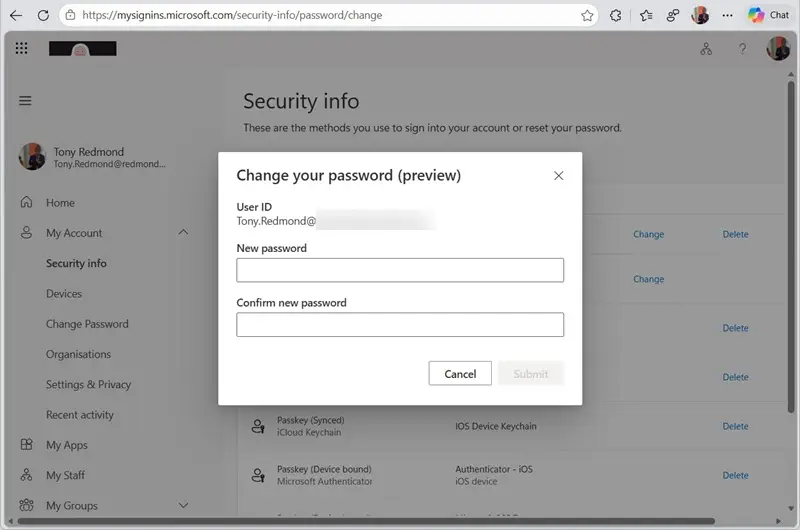
Entra ID is adding a way for users to change a forgotten password after signing in with a supported strong authentication method. For IT teams supporting older applications that still require passwords, the change could reduce calls to the help desk and avoid sending users through self-service password reset (SSPR) just to set a new password.
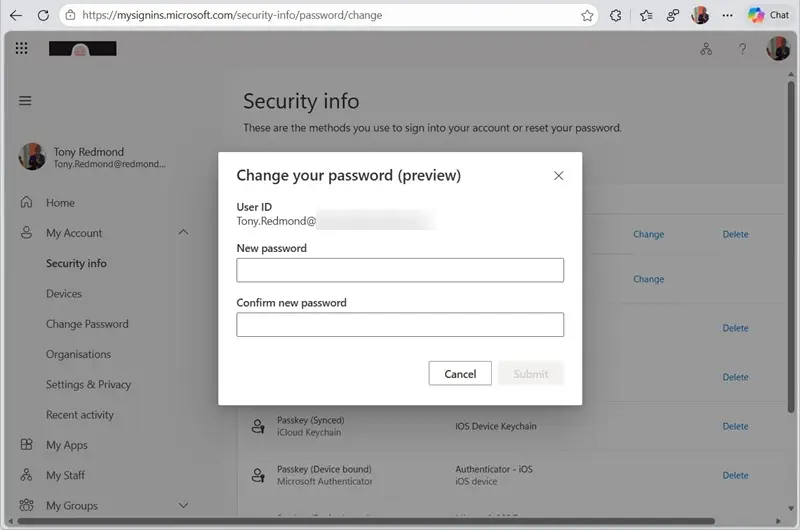
The feature is in preview and is rolling out to tenants. It should be available everywhere by the end of November 2026, according to Microsoft’s Message Center notification MC1437671, first published on 23 July 2026 and last updated on 13 October 2026. The setting administrators need is already available, but it’s disabled by default. Turning it on does not make the feature work until Microsoft has deployed it to that tenant.
What users will see
Users who already know their current password can change it from the My Sign-Ins page. With the new feature disabled, that process still asks for the existing password. A user who has forgotten it must use SSPR or contact the help desk.
After the feature is deployed and enabled, a user can first sign in to Entra ID with a supported strong authentication method, then go to My Sign-Ins and select Change password. Entra ID presents a form asking for a new password without requiring the old one. This is a password change following a secure sign-in; it isn’t the usual password reset path.
That distinction matters in environments where modern authentication is available for some services but not all. Passkeys, Microsoft Authenticator and Windows Hello for Business can support passwordless sign-in, but older applications may still expect a password. A user can therefore have a modern way to authenticate to Entra ID and still need a password for a legacy application. This feature gives that user a route to set a new password without remembering the one they are replacing.
Using Change password this way requires an Entra P1 or P2 licence. Administrators should account for that requirement when assessing which users can use the feature. Enabling the tenant setting alone does not remove the licensing condition.
Enable the password configuration in Microsoft Graph
The control lives in the authentication method configuration for passwords. The Entra admin center doesn’t yet offer a setting for it, and the current Microsoft Graph API documentation for the authentication methods policy doesn’t cover the password configuration. The implementation uses the beta Graph PowerShell SDK cmdlet.
To update the setting, connect an interactive Microsoft Graph PowerShell session with the delegated Policy.ReadWrite.AuthenticationMethod permission. The signed-in administrator also needs an Entra role that permits changes to authentication policies, such as Authentication Policy Administrator. The following command sets allowPasswordChangeAfterSecureSignIn to true:
Connect-MgGraph -Scopes "Policy.ReadWrite.AuthenticationMethod" -Nowelcome
$PolicyUpdate = @{}
$PolicyUpdate.Add("allowPasswordChangeAfterSecureSignIn", $true)
$PolicyUpdate.Add("@odata.type", "#microsoft.graph.passwordAuthenticationMethodConfiguration")
Update-MgBetaPolicyAuthenticationMethodPolicyAuthenticationMethodConfiguration -AuthenticationMethodConfigurationId "Password" -AdditionalProperties $PolicyUpdate
The cmdlet sends the equivalent of a PATCH request to the password configuration at the Microsoft Graph beta endpoint. Microsoft’s authentication methods policy documentation describes the broader policy resource, but this password setting is a beta implementation.
Administrators can read the configuration back with the corresponding beta cmdlet:
$Configuration = Get-MgBetaPolicyAuthenticationMethodPolicyAuthenticationMethodConfiguration -AuthenticationMethodConfigurationId "Password"
$Configuration.additionalProperties
In the returned data, check that allowPasswordChangeAfterSecureSignIn is set to True. The property appears under additionalProperties because the current Graph PowerShell SDK model doesn’t expose it as a strongly typed property. The SDK stores fields it can’t map to named properties in that dictionary.
Plan for deployment and user support
The configuration change takes effect almost immediately, but availability depends on Microsoft deploying the feature to the tenant. Admins should treat those as two separate conditions when troubleshooting: the policy can show the setting enabled while users still don’t see the new password form because deployment hasn’t reached their tenant.
Once available, the feature should reduce one common source of password support requests: a user who can prove their identity with strong authentication but cannot supply an old password required by the standard change flow. It won’t remove the need for SSPR in other situations, and users still need an eligible Entra licence. Help desks should be ready to distinguish the new change flow from a password reset and to check tenant deployment and configuration when a user reports that the form still asks for the old password.
There has also been at least one reported glitch during an incomplete attempt: after the Change password operation was left to time out, Teams had trouble switching from another tenant back to the user’s home tenant. Resetting the password and signing out and back in resolved that case, but the cause was unclear. Users should complete the password change after starting it. IT teams can monitor for similar sign-in or tenant-switching issues as the preview reaches more tenants.
For administrators, the practical sequence is clear: confirm the required licence, grant the appropriate administrator access, enable the password configuration through Graph, and allow for tenant deployment before expecting the new form to appear. That gives users who rely on both modern sign-in and older password-based applications a simpler way to maintain their passwords.