SharePoint Online Auto-Labeling Reaches Existing Files Across Up to 10 Sites
- Tony Redmond
- 753 views
A new Purview policy applies library default sensitivity labels to older files, with limits on target sites, supported formats and files it can process.
Older SharePoint files can now receive library default labels
SharePoint Online can now extend a document library’s default sensitivity label to qualifying files that were already stored there before the default was configured. That closes a gap in the existing feature: previously, older files generally waited for someone to edit them before SharePoint applied the library’s default label.
Microsoft introduced default sensitivity labels for SharePoint Online document libraries in 2022. Once configured, a library assigns its default label to files added later and to files modified afterward. The label can also be applied to an existing file that has no label or has a lower-priority label, but under the earlier behavior that depended on activity involving the file.
That timing matters for libraries with documents that are rarely opened or changed. A file might sit untouched for years, leaving it without the protection administrators intended when they set a default label. The new policy gives administrators a way to ask Purview to scan selected sites and apply library defaults to eligible files that have not been updated.
Why the existing-file gap matters
Default labels help reduce reliance on each user remembering to classify every document. They can provide a consistent starting point for files stored in a library, while labels that apply encryption can restrict access to their contents. Microsoft 365 E5 or equivalent compliance and protection add-ons are among the licensing options that include the required Information Protection capabilities.
For teams assessing exposure to AI tools, an unlabeled file can create a practical blind spot. The source describes sensitivity labels as one way to prevent Microsoft 365 Copilot Chat from using certain files in responses to user prompts. It also notes that encryption can prevent third-party AI tools, including the Microsoft 365 Connector for Claude, from processing protected content. Extending a library’s default label to eligible older files can therefore bring that content under the same labeling approach as newer files.
The result depends on how the library’s label is configured. The policy applies the default label already set on a document library; administrators need at least one such library in each site they add to the policy. It does not, by itself, define a new label or change the library’s default.
Policy scope, roles and file coverage
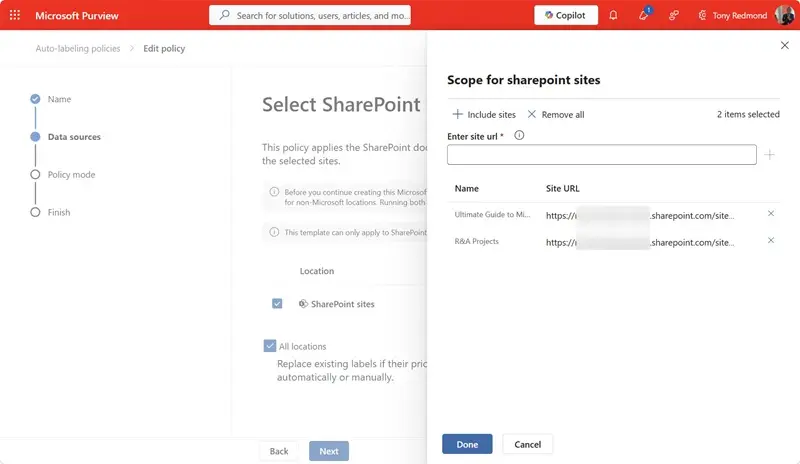
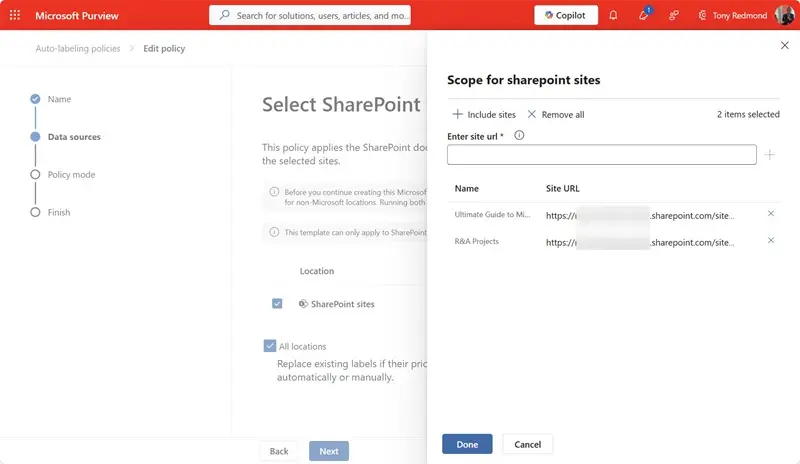
Microsoft’s message center notification MC1477181, dated 22 September 2026, announced the special auto-label policy. A tenant can have one such policy, and it can process a maximum of ten SharePoint Online sites at a time. The account configuring it must have either the Compliance administrator or SharePoint administrator role.
Purview checks that each selected site has at least one document library configured with a default sensitivity label. If it cannot verify that requirement, it returns an error when the administrator tries to add the site. Administrators should account for that prerequisite when selecting sites and confirm the library settings before starting a scan.
A Purview Information Protection background job scans the configured sites for files that are missing their library’s default label. SharePoint Online then applies the label to files that qualify. Processing is limited to file formats that support sensitivity labels; the formats identified for this policy are Office files and PDFs.
Administrators can also choose to replace existing labels when those labels have a lower priority than the library’s default. That option applies whether the lower-priority label was assigned manually or automatically. Teams should review their label priority arrangements and intended library defaults before enabling replacement, since the policy can change labels already present on files.
Some files may need more than one processing pass
The background job may encounter files it cannot access at the time it runs. Microsoft identifies open files, files protected with double-key encryption or user-defined permissions, and files that are locked or checked out as examples. Those conditions can prevent a file from being labeled during a pass.
Microsoft expects repeated processing passes to label almost every file in a library, but administrators should treat that as an expected outcome rather than assume every item will be handled on the first scan. The policy’s format limits and access exceptions are relevant when deciding how much coverage a site needs and when checking whether older content has received its label.
Ten-site limit makes prioritization necessary
The single-policy, ten-site limit is the main operational constraint. Administrators will need to select sites carefully, with attention to where unlabeled files could create the greatest exposure. The source points to highly confidential sites that lack protections such as Restricted Content Discovery as likely candidates.
Microsoft describes a rotation approach for tenants with more than ten target sites: let Purview process one group, update the policy to include another group, and continue until all relevant sites have been covered. That makes broader coverage possible, but it requires repeated administration. Because the work runs in the background, the time needed for each group depends on Purview’s processing pace; the policy description provides no fixed completion time.
The policy is generally available. Administrators can review Microsoft’s [documentation](https://learn.microsoft.com/en-gb/purview/apply-sensitivity-label-automatically?tabs=apply-label&WT.mc_id=M365-MVP-9501#apply-default-sensitivity-labels-from-sharepoint-document-libraries-to-existing-files), verify licensing and roles, confirm default labels on the target libraries, and choose the first ten sites to scan. For tenants with more sites, the key planning task is deciding the order of rotation and checking which files remain outside the supported formats or inaccessible during processing.