Microsoft Purview Adds Audit Events for Portal Access Checks
- Tony Redmond
- 611 views
New Purview audit events record role and scope checks, helping administrators investigate portal access and report on granted or blocked decisions.
Microsoft Purview is adding audit records that show how the portal evaluates user access. For administrators investigating why someone could or couldn’t open a Purview solution, these events provide evidence about the roles checked and, where relevant, the scopes applied.
The change is described in Microsoft 365 message center notification MC1473155, last updated 13 October 2026, and is listed as roadmap item 569363. Microsoft says the records are intended to help administrators investigate access problems and understand authorization decisions. The feature produces two event types, depending on the check Purview performs.
Role membership and scope checks
Purview access can depend on Microsoft Entra ID roles and Purview role-based access control (RBAC) roles. Entra ID roles, such as Global administrator, apply across the tenant. Purview RBAC roles, such as Audit manager, can be scoped to particular resources. For example, an eDiscovery manager assignment can be limited to specific eDiscovery cases. Entra ID roles take precedence over Purview RBAC roles, as described in Microsoft’s documentation on role precedence and scope behavior.
When Purview checks whether a user belongs to the roles required for access, it can record a CheckUsersInRoles event. When it also needs to evaluate whether a role’s scope covers the requested resource, it can record CheckUserInRolesWithScopes. Both events are logged under the SecurityComplianceRBAC workload. They become available in a tenant after Microsoft enables the update there.
That distinction matters when reviewing a failed access attempt. A role may exist on the user’s account, while its scope may not include the solution or resource they tried to use. The events give administrators a way to examine those checks in the audit record rather than relying only on the user’s description of what happened.
What the records show
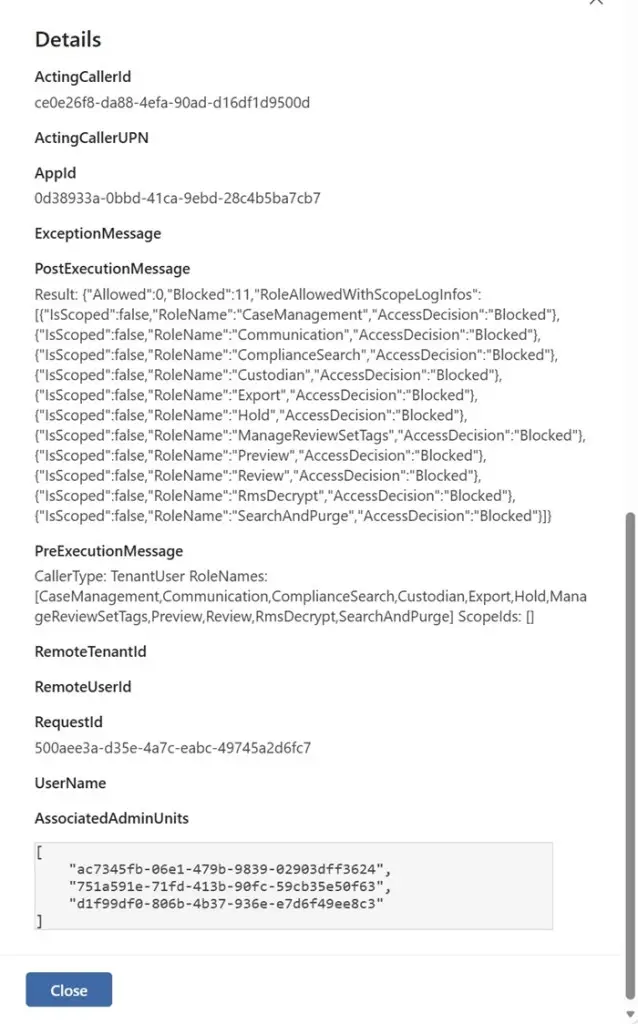
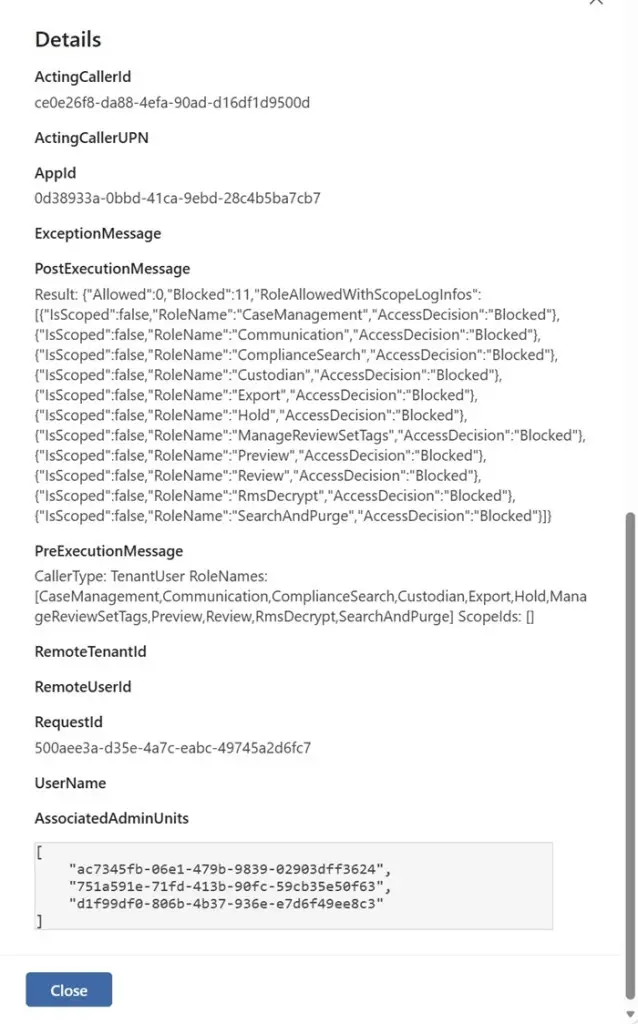
A failed CheckUserInRolesWithScopes record can show that the user lacked one or more roles required to enter eDiscovery. In the example below, the PostExecution property captures the blocked decisions. A successful check can instead show allowed roles and their access decisions in the PostExecutionMessage property:
Result: {"Allowed":2,"Blocked":0,"RoleAllowedWithScopeLogInfos":[{"IsScoped":false,"RoleName":"RoleManagement","AccessDecision":"Granted"},{"IsScoped":false,"RoleName":"ViewOnlyRoleManagement","AccessDecision":"Granted"}]}These details can help narrow down whether a user’s access problem relates to role membership or a scope restriction. They also give teams an audit trail for reviewing who accessed Purview solutions. The records describe the outcome of an access evaluation; administrators still need to interpret that outcome against the user’s intended access and assigned roles.
Query the events with Microsoft Graph
For a one-off investigation, an administrator can inspect individual audit records. For recurring reporting, querying and processing the target events is more practical. The Search-UnifiedAuditLog PowerShell cmdlet has been a common way to search audit data, but Microsoft plans to retire it next year, according to the retirement information. The example below submits a query job through the AuditLogQuery Graph API for the two Purview access operations, covering the previous seven days through one hour after the query is created:
$AuditJobName = ("Purview Access audit job created at {0}" -f (Get-Date -format 'dd-MMM-yyyy HH:mm'))
$AuditQueryStart = ((Get-Date).AddDays(-7).toUniversalTime().toString('yyyy-MM-ddTHH:mm:ss'))
$AuditQueryEnd = ((Get-Date).AddHours(1).toUniversalTime().toString('yyyy-MM-ddTHH:mm:ss'))
[array]$AuditOperationFilters = "CheckUsersInRoles", "CheckUserInRolesWithScopes"
$AuditJob = New-MgSecurityAuditLogQuery -DisplayName $AuditJobName -OperationFilters $AuditOperationFilters -FilterStartDateTime $AuditQueryStart -FilterEndDateTime $AuditQueryEnd
The query results take time to become available for download. Their structure also varies depending on whether the query is run through Graph API requests or Microsoft Graph PowerShell SDK cmdlets; details on interpreting AuditLogQuery output describe those differences.
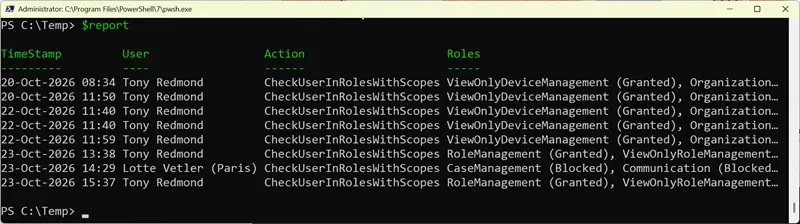
In output from Get-MgSecurityAuditLogQueryRecord, the audit record provides the user’s object identifier rather than a display name or user principal name. A separate user lookup is therefore needed to make the report easier to read. The following example also looks up service principals so it can add an application name, then collects the timestamp, user, operation, roles and application into report rows:
$Report = [System.Collections.Generic.List[Object]]::new()
# Get service principals to interpret app names
$SP = Get-MgServicePrincipal -All
ForEach ($Rec in $AuditRecords) {
$AuditData = $Rec.AuditData.additionalProperties
$Result = ($AuditData.PostExecutionMessage -replace '^Result:\s*') | ConvertFrom-Json
$User = Get-MgUser -UserId $Rec.UserId
$AppName = $SP | Where-Object {$_.AppId -eq $AppId} | Select-Object -ExpandProperty DisplayName
If ($null -eq $AppName) { $AppName = "Unknown app" }
[array]$RoleInfo = $null
ForEach ($Role in $Result.RoleAllowedWithScopeLogInfos) {
[string]$RoleOutput = ("{0} ({1})" -f $Role.RoleName, $Role.AccessDecision)
$RoleInfo += $RoleOutput
}
$ReportLine = [PSCustomObject]@{
TimeStamp = Get-Date $Rec.CreatedDateTime -format 'dd-MMM-yyyy HH:mm'
User = $User.displayName
Action = $Rec.Operation
Roles = $RoleInfo -join ", "
AppName = $AppName
}
$Report.Add($ReportLine)
}
$Report = $Report | Sort-Object {$_.TimeStamp -as [datetime]}
What administrators should watch
In the reported results, every captured access check used CheckUserInRolesWithScopes; no CheckUsersInRoles events had appeared. That may change as more data is collected. The application name in the records appeared as “Protection Center,” an older name for the Purview portal, so administrators may encounter that label in reports.
Worldwide deployment was scheduled to finish by the end of October. Teams can check their audit data after the feature is enabled, then decide whether these events belong in existing access investigations or recurring reports. The added records make Purview authorization checks more visible, particularly when role scope is part of the decision.