Fetch Entra ID Sign-In Logs Reliably by Breaking Queries into Smaller Time Windows
- Tony Redmond
- 634 views
Large Entra ID sign-in queries can time out or hit throttling. Smaller date windows make retrieval more manageable for tenant analysis and archival.
For Microsoft 365 administrators, the main challenge in collecting Entra ID sign-in logs is often the volume of records, not the query itself. A broad request can run into Graph pagination, performance limits, throttling or a 300-second timeout. Breaking the work into shorter time windows gives each request less data to process and makes large retrieval jobs easier to manage.
Sign-in records are generated when users, apps, service principals or agents authenticate against Entra ID. They show who or what accessed a tenant, when the access happened and how authentication was performed. That information can help teams investigate security incidents, diagnose access problems and examine tenant activity. The practical question is how to retrieve enough history without asking one request to handle more data than it can reliably return.
Know which log holds the history you need
Entra ID retains sign-in logs online for periods that vary by licence and event type. Microsoft Entra ID P1 and P2 tenants can access sign-in logs from the previous 30 days through the Graph API or PowerShell's Get-MgAuditLogSignIn cmdlet. Risky sign-ins have different retention periods. Administrators planning a query should check the applicable Entra ID retention rules for the event type and licence in their tenant.
Sign-in events can also be captured in the Microsoft 365 unified audit log when audit logging is enabled. The retention periods described here are 180 days for Office 365 E3 accounts and 365 days for Office 365 E5 and higher licences. Administrators can search that data with Search-UnifiedAuditLog or the AuditLogQuery Graph API. That route can provide a longer history than Entra ID's online sign-in logs, subject to the unified audit log's own retention rules.
For recurring searches that involve large amounts of audit data, Azure Automation can run Graph based searches; a Graph audit search example describes that approach. Teams that need longer term storage can also move audit data into a separate repository such as Sentinel or Splunk, then query it according to the retention configured there.
Why broad Graph requests struggle
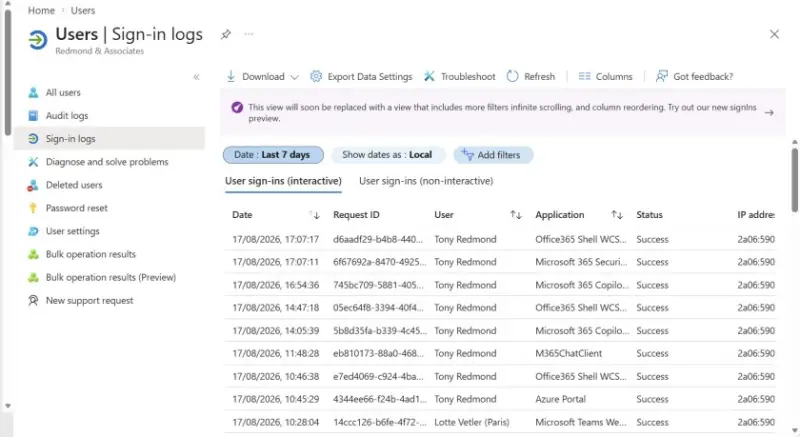
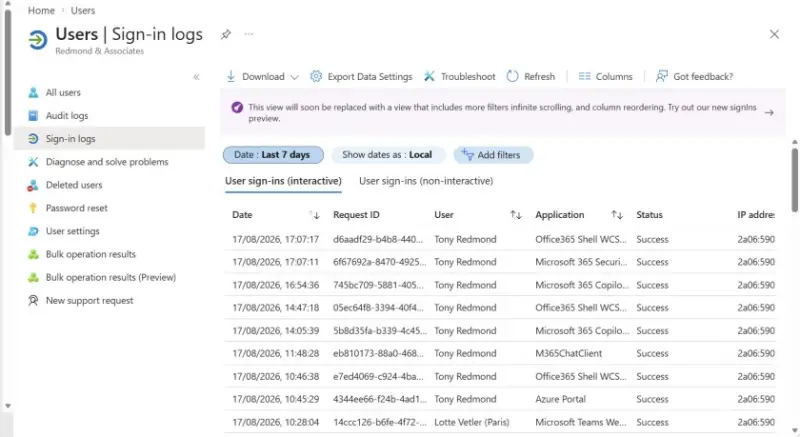
A busy tenant can produce millions of sign-in events during a 30 day rolling window. Graph returns results in pages, so fetching a wide date range can require many backend queries and continuation requests. A large request therefore creates more opportunities for a delay or failure during pagination. In the Entra admin center, the default view uses a seven day period and loads more logs as needed, keeping the initial query narrower. Figure 1 shows the sign-in log view.
PowerShell retrieval can fail with this timeout message:
The request was canceled due to the configured HttpClient. Timeout of 300 seconds elapsing.
Microsoft warns that Graph isn't designed to pull large volumes of activity data and that heavy retrieval can cause pagination and performance problems. Its guidance also recommends applying a date filter to reduce the chance of a timeout. Throttling adds another constraint: Entra ID, like other Graph workloads, limits request rates so the service can handle demand predictably. A script that generates many requests may be delayed by retries, even when each individual query is smaller.
Check the query before increasing its scope
Several conditions make retrieval problems more likely: a tenant with many users and high sign-in activity; a broad date range; no filter on createdDateTime; a request that tries to retrieve every page with the -All parameter; or throttling that introduces retries and waiting. These factors can combine. For example, asking for all available pages across a long date range gives Graph a large amount of work and leaves the script dependent on many continuation requests completing in time.
Filtering on createdDateTime and limiting each request to a manageable interval reduces the amount of data returned at once. The right interval depends on tenant activity. A daily window may suit one environment; a particularly busy tenant may need shorter windows. Smaller intervals mean more separate requests, so administrators should account for the total workload and throttling when setting a schedule.
Split the retrieval into time windows
The core method is to divide the date range into smaller queries, then combine the returned records. A 30 day period could be retrieved as 30 one day windows. For a very large tenant, the same span could be divided into 720 one hour windows. These are examples of possible chunk sizes, not fixed requirements: the tenant's event volume determines what works in practice.
The approach is familiar to teams that archive audit records. Instead of trying to export a large history in one pass, they can retrieve data in smaller batches and ingest it into a separate repository. The same principle applies to message trace data: the Get-MessageTraceV2 cmdlet limits retrieval to periods of no more than 10 days, so a 90 day search can be handled as a sequence of shorter segments.
A demonstration PowerShell script is available in the Microsoft 365 for IT Pros GitHub repository. It illustrates the split query approach and is not presented as a production ready solution. Administrators should expect to tune the time window to their tenant's sign-in volume and consider what additional error handling their own process needs.
Graph JSON batching is another option for retrieving data from Graph endpoints. It can be powerful, but adds work: scripts must construct batch requests, handle pagination and retries, and reconcile results from multiple requests. For many PowerShell workflows, sequential time windows are a simpler starting point. The useful operational check is whether each window completes consistently, with the expected records, before expanding the collection job across the full retention period.