SharePoint-rechten: 10 practices for a structure administrators can manage
- Marcel
- 412 views
Set lasting access at the right level, manage permissions through groups, and review sharing and Copilot exposure before exceptions multiply.
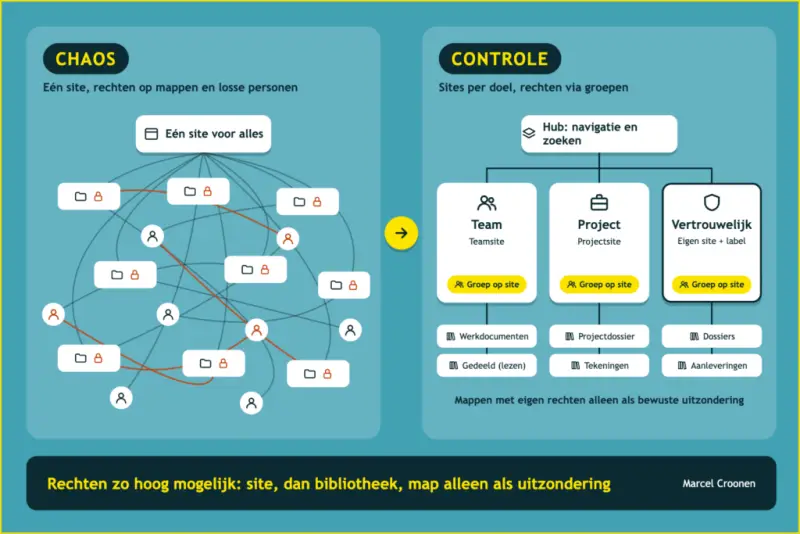
SharePoint permission problems often start with an information architecture that forces too many exceptions. When dozens of teams share one site, administrators can lose track of who has access, why it was granted and when temporary access should end. Copilot makes that sprawl more visible: it doesn’t bypass permissions, but it can find and summarize content a user is already allowed to access, including material exposed by old or accidental grants.
The most manageable approach is to place lasting access at the highest level where the audience, ownership and lifecycle are the same. That usually means a site, sometimes a library, and only in limited cases a folder or file.
Start with the information architecture
Consider an organization of about 300 employees with 20 to 30 teams, all expected to work from one SharePoint site. Each team may need a private workspace, a space that everyone can read but only the team can edit, temporary collaboration with other teams, and tighter protection for sensitive information. If creating more sites is off the table, exceptions are likely to accumulate in libraries and folders.
A clearer structure begins by giving distinct teams, departments, projects or processes their own sites when they have a separate audience, owner, confidentiality level or lifecycle. Related sites can be connected through a hub for navigation, visual consistency, content aggregation and search. A hub does not change permissions on the sites it connects: each site keeps its own owners, members and access rules. Microsoft’s guidance on planning SharePoint hub sites describes this role.
Within a site, use separate libraries when content has a different purpose, process or access group. Metadata, content types and views can help people find documents without relying on deep folder trees. Folders can still be useful, but inconsistent structures add work for both access reviews and everyday browsing.
Choose the highest practical permission level
Site permissions are generally easiest to see and review. Library permissions are a manageable exception when one part of a site serves a distinct audience. Folder access may suit a narrow, repeatable scenario. File-level grants are best kept for occasional or temporary needs.
Breaking permission inheritance on a folder or file creates a unique permission scope. A library can contain up to 50,000 unique scopes technically, but Microsoft recommends staying below 5,000 for performance. Files that inherit permissions from the same parent folder share a scope; they are not each counted as a separate one.
Those limits are not a target. The harder problem is operational: if nobody can explain where exceptions exist, why they were made or who should review them, the structure is already difficult to govern. A growing number of restricted folders in one library can be a sign that the information belongs in a separate library or site. See Microsoft’s permission scope guidance.
Use folder permissions only with a repeatable design
Folder permissions aren’t inherently wrong. They can work when the access pattern is understood and applied consistently. A construction project, for example, might involve architects, engineers, installers and subcontractors who should see different subsets of project material.
If the project has its own participants, confidentiality needs or end date, a dedicated project site is usually easier to manage. Libraries can separate stable audiences, while a shared library can hold material intended for all participants. If unique folder permissions are still needed, standardize the layout across similar projects, assign access through managed groups, document the exceptions, review guest and temporary access, and remove permissions when the project closes. A provisioning process can help apply the same design consistently.
Manage lasting access through groups
Assign ongoing permissions through Microsoft 365 groups, SharePoint groups or Microsoft Entra ID security groups where practical. Direct grants to individual employees make changes harder to maintain across multiple locations. When group membership is kept current centrally, changes flow through to the SharePoint sites that use the group.
Individual access can still be appropriate for a short-lived exception, provided it stays limited and reviewable. Each site should also have at least two active owners. That gives the organization a way to manage the site when one owner is away, changes roles or leaves.
Keep personal work, teamwork and publishing distinct
Use OneDrive for an employee’s personal drafts and limited, temporary collaboration where one person is the natural owner. When information belongs to a group, needs multiple owners or must remain available over time, use a Teams team or SharePoint team site.
A communication site fits material that a small author group publishes for a broad audience, such as procedures, policies and templates. Teams meetings do not provide a separate storage location by themselves, so decide where agendas, meeting documents, decisions, recordings and minutes should live.
Give sensitive material a defined boundary
HR files, executive meeting documents, legal material and incident reports should have a more restricted home than a general collaboration site. A dedicated site with a limited audience, managed groups, at least two owners and controlled sharing settings gives administrators a clearer boundary.
A sensitivity label applied to a site can control settings such as privacy, guest access, external access and access from unmanaged devices. It does not replace permission management, and it does not automatically label the documents stored there. Where files need protection after download or forwarding, a file-level sensitivity label with encryption may be appropriate.
A default sensitivity label on a library can apply to new files, uploads and existing files that are edited again. Existing files that remain untouched aren’t automatically labeled in bulk. Microsoft explains these controls in its guidance on sensitivity labels for groups and sites and default labels for SharePoint libraries.
Match sharing methods to the task
Someone who only needs to submit a document doesn’t necessarily need access to an entire site or library. Microsoft Forms with file upload may suit internal submissions. For external submissions, SharePoint or OneDrive’s Request Files feature can let someone upload files without viewing other items in the folder. Its availability depends on the Microsoft 365 environment’s Anyone link settings. See Microsoft’s instructions for enabling file requests.
Administrators should also distinguish between link types. “People with existing access” doesn’t grant new permissions. “People in your organization” can be used by anyone in the organization who receives the link. “Specific people” limits use to named recipients. Where appropriate, make Specific people the default link type at the organization or site level; the link types users can select still depend on the maximum sharing level allowed.
Be cautious with broad links, organization-wide groups and links without an expiry date. If Anyone links are needed, set a suitable maximum lifetime where possible. Users should understand that sending a link can grant access, depending on its type. Microsoft covers the default setting in its guidance on changing the default sharing link.
Govern sites and review access over time
Limiting site creation may seem like a way to prevent sprawl, but one large site can shift complexity into libraries, folders, groups and exceptions. Governance works best when it defines who can request and approve sites, provides recognizable templates and naming rules, and assigns at least two owners when a site is created.
Owners should periodically review whether a site is still needed and whether its members, guests, links and security settings still fit. Set the review frequency according to risk: a confidential site or external project environment merits closer attention than a standard internal site. Decide what happens when a project ends, including whether its site becomes read-only, is archived or is eventually deleted, and remove access and links that are no longer needed.
Check broad access before relying on Copilot
Copilot doesn’t alter SharePoint’s permission model, but it can make existing oversharing more consequential by helping users locate, combine and summarize content they can access. SharePoint Advanced Management’s Data Access Governance reports can, depending on available licences and features, show broad user access, sharing link activity and access through very wide groups.
A report is a prompt to investigate, not proof that a site is misconfigured. An intranet site may intentionally be open to the organization. Check the intended audience and the underlying permissions before changing access. Microsoft documents these reports in its Data Access Governance guidance.
Administrator checklist
- Does each site have a clear purpose and recognizable owner?
- Is information with a different audience, confidentiality level or lifecycle stored in a suitable location?
- Is lasting access assigned at the highest suitable level and managed through groups?
- Are broad sharing links limited and given an expiry where appropriate?
- Do sensitive files have a defined access boundary and suitable labels?
- Are owners, members, guests, links and exceptions reviewed periodically?
- Are expired project sites and temporary permissions actually cleaned up?
For an organization that must keep everything in one site, use a small number of clearly separated libraries and manage lasting access through groups. Avoid creating a new folder permission exception for every team and scenario. If information has a persistently different audience or confidentiality level, document the access and security risks of the single-site constraint and revisit it with the policy owner. The longer exceptions accumulate, the harder they are to explain and remove.