Excel COUNT, COUNTA and COUNTBLANK: Audit Mixed Data Correctly
- Frédéric LE GUEN
- 682 views
COUNT, COUNTA and COUNTBLANK classify cells differently. Use them together to spot numeric, text and missing entries in a range.
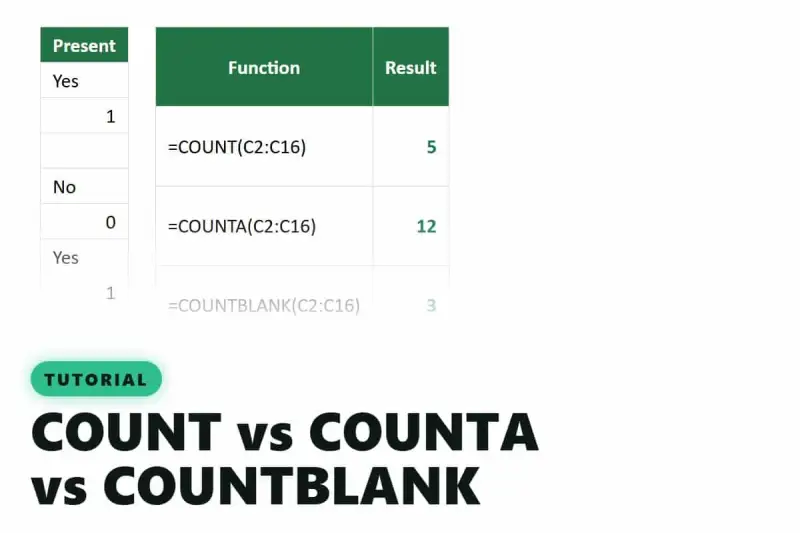
When an Excel total doesn’t match the number of entries in a column, the counting function may be the reason. COUNT, COUNTA and COUNTBLANK examine different kinds of cell content, so they can return different results for the same range. Used together, they help identify numbers, text and missing entries before those differences affect a calculation.

Start with the type of data you need to count
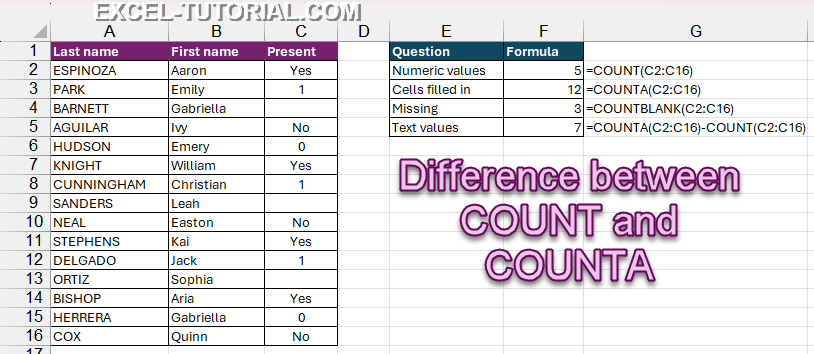
Consider an attendance list in cells C2:C16. Some people entered Yes or No, some entered 1 or 0, and others left the cell empty. The range contains 15 rows, but there are several ways to define a completed entry. Choose the function according to the question you’re asking.
If you need to know how many cells contain numbers, use:
=COUNT(C2:C16)
COUNT includes whole numbers, decimals and dates. Excel stores dates as serial numbers, so COUNT treats them as numeric values. It excludes text, truly empty cells, TRUE or FALSE values, and errors.
For the attendance example, COUNT returns 5. That result tells you five cells contain numeric entries; it doesn’t tell you how many people supplied any kind of answer. If the column is meant to hold numbers, a lower count than the number of expected rows can flag entries stored as text. That matters when the same range feeds a SUM: text entries won’t contribute as numeric values.

COUNTA includes text and other values
To count cells that contain something, use:
=COUNTA(C2:C16)
COUNTA counts numbers, text, dates, TRUE or FALSE values, and errors. It leaves out cells that are truly empty. In the attendance list, it returns 12, covering the numeric and text answers together.
There’s a subtle case to account for when formulas populate a range. A cell containing =IF(A2>10,"OK","") can appear blank when its condition returns an empty text string. COUNTA still counts that cell because it contains a formula. So a visual scan of the worksheet may not agree with the COUNTA result.
COUNTBLANK checks for empty results
To find how many cells are missing an entry, use:

=COUNTBLANK(C2:C16)
This can help review a form, imported data or a survey response range. In the example, COUNTBLANK returns 3, indicating three cells it considers blank.
Formula results make the meaning of “blank” less straightforward. COUNTBLANK also counts a cell whose formula returns an empty text string, even though COUNTA counts that same cell as occupied. As a result, COUNTA plus COUNTBLANK can exceed the number of rows when formulas return empty strings. The functions are applying different rules: COUNTA sees a formula in the cell, while COUNTBLANK treats its empty text result as blank.
Combine the functions to audit a range
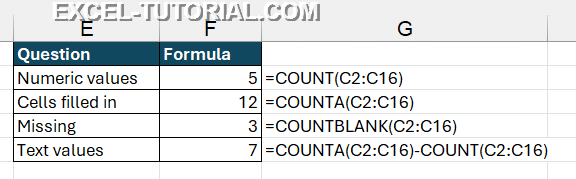
The three results can give a quick breakdown of mixed data. In the attendance example, COUNT reports 5 numeric values, COUNTA reports 12 nonempty cells, and COUNTBLANK reports 3 blank cells.
Excel doesn’t have a COUNTTEXT function, but subtracting COUNT from COUNTA gives the number of nonnumeric entries in this example:
=COUNTA(C2:C16)-COUNT(C2:C16)
The result is 7. Here, those seven entries are answers entered as text. That subtraction is useful for an audit, but it identifies nonnumeric content generally; text is the interpretation when the range contains the values described in this attendance example.
- 5 numeric values, counted by COUNT
- 12 cells with content, counted by COUNTA
- 3 blank cells, counted by COUNTBLANK
- 7 nonnumeric entries, calculated as COUNTA minus COUNT
This breakdown can distinguish an incomplete range from one that contains answers in inconsistent formats. To locate text values, the example uses ISTEXT; IF can then be used to make a correction. Check the intended format before changing entries, especially if the same column mixes labels and values by design.
Use criteria functions for targeted counts
COUNT, COUNTA and COUNTBLANK classify cells by content or blank status. If the question is how many people answered “Yes,” use COUNTIF. For counts that must meet multiple criteria, use COUNTIFS.
The practical check is to match the function to the question: COUNT for numeric entries, COUNTA for cells with content, COUNTBLANK for blanks, and COUNTIF or COUNTIFS when the count depends on a condition. That choice makes a mixed column easier to diagnose before its values feed a report or calculation.