Excel SUMIF vs SUMIFS: Argument Order Can Turn a Formula Into Zero
- Frédéric LE GUEN
- 494 views
SUMIF puts the sum range last; SUMIFS puts it first. A swapped SUMIF formula can return zero without an error.

Excel can accept a SUMIF formula that uses the wrong columns and return a plausible looking result: zero. The risk comes from a small but easy to miss difference between SUMIF and SUMIFS. Both functions add values that meet criteria, but their arguments put the range to be added in different positions.

For sales reports built from Excel tables, that distinction matters. A formula can be syntactically valid while testing the wrong data, so checking for error messages alone won’t catch every mistake. Keep the argument order visible when you build or review formulas.
SUMIF puts the sum range last
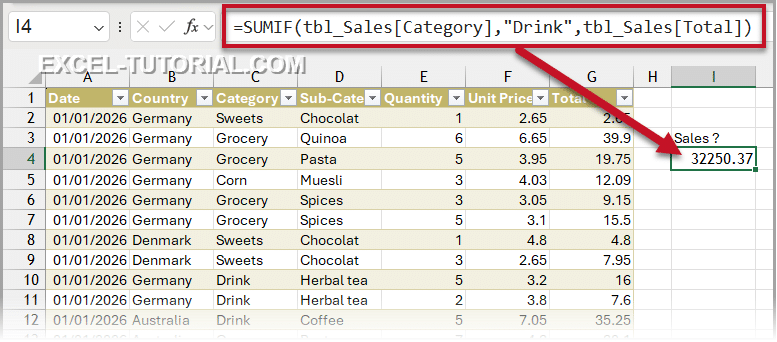
SUMIF takes its arguments in this order: the range to check, the criterion, and the range to sum. To total sales for the Drink category in a table named tbl_Sales, use:
=SUMIF(tbl_Sales[Category],"Drink",tbl_Sales[Total])
Here, Excel checks the Category column for “Drink” and adds the matching values from Total. In the formula, the tested range and criterion come first; the sum range is third and last.
A swapped formula can return zero without an error
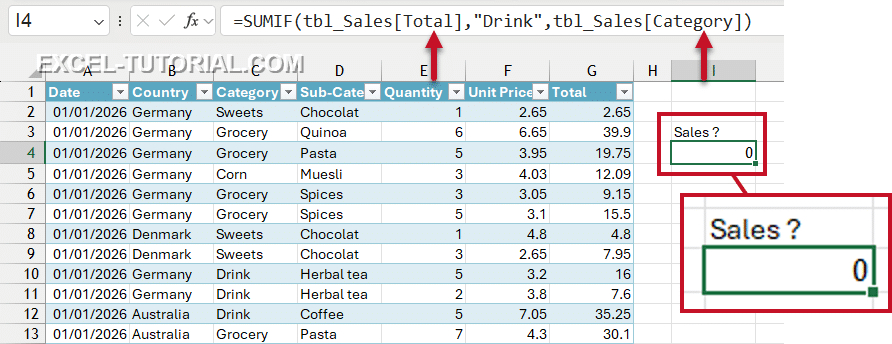
If the two table columns are reversed, the formula still has three arguments and Excel accepts it:

=SUMIF(tbl_Sales[Total],"Drink",tbl_Sales[Category])
But Excel now searches the numeric Total column for the text “Drink.” It finds no matching values, so there’s nothing to sum and the result is zero. That result follows from the formula Excel was given, even though it probably isn’t the intended calculation.
This is easy to overlook in a report with many totals: the workbook may show a number, and there may be no formula error to flag the problem. When a total is unexpectedly zero, check which range the function searches as well as which range it adds.
SUMIFS starts with the sum range
SUMIFS reverses the placement of the range to add. Its first argument is the sum range. After that, provide each pair of arguments in sequence: the range to test, followed by the criterion to match.
The same Drink sales total can be written as:

=SUMIFS(tbl_Sales[Total],tbl_Sales[Category],"Drink")
So the key distinction is straightforward: SUMIF takes the test range, criterion, then sum range; SUMIFS takes the sum range first, then the test range and criterion. The similar names make the difference easy to forget, so identify the function before placing its arguments.
- SUMIF: test range, criterion, sum range.
- SUMIFS: sum range, then one or more test range and criterion pairs.
Why the functions use different orders
SUMIF is an older Excel function designed to handle one criterion. In that format, the sum range sits at the end and can be omitted. SUMIFS arrived in Excel 2007 alongside COUNTIFS and AVERAGEIFS. It supports up to 127 criteria, supplied as range and criterion pairs.
With a variable list of pairs, the sum range needs a fixed position so Excel can distinguish it from the criteria arguments. SUMIFS uses the first position for that range. Changing SUMIF’s established order would have disrupted existing workbooks, so Excel kept both formats. A similar order reversal applies to AVERAGEIF and AVERAGEIFS.
Use one syntax for single and multiple criteria
A practical way to reduce confusion is to use SUMIFS even when you have only one criterion. That gives a team one argument pattern to remember for sums, and it aligns with the range-and-criterion structure used by COUNTIFS and AVERAGEIFS.
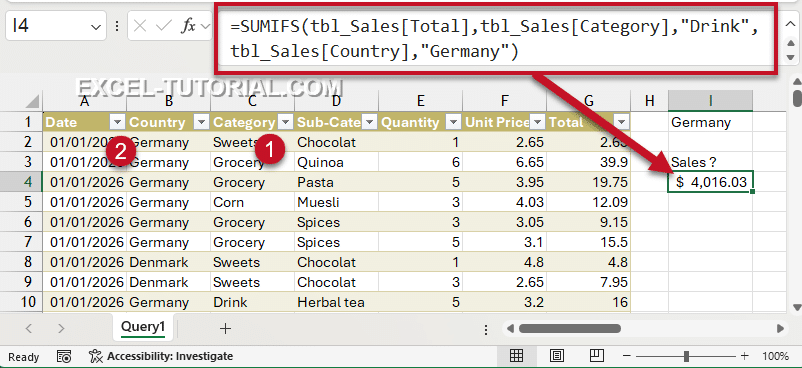
When the calculation needs another criterion, add another range and criterion pair at the end. For example, to total sales in the Drink category for Germany:
=SUMIFS(tbl_Sales[Total],tbl_Sales[Category],"Drink",tbl_Sales[Country],"Germany")
The function adds values from Total only where Category matches “Drink” and Country matches “Germany.” Each added condition is another pair; the sum range stays at the front.
Check formulas before trusting a zero
When building totals by salesperson, region, product or category, confirm that the formula tests the intended column and sums the intended values. For SUMIF, the range being added belongs at the end. For SUMIFS, it belongs first. That quick check can catch a formula that Excel accepts but that answers a different question than the report requires.
For more practice, work through the SUMIF exercise, try the COUNTIF and COUNTIFS exercises, or browse the online Excel exercises. When reviewing an existing workbook, start with unexplained zero totals and verify the argument order before assuming the underlying data is missing.