Gemini on Android Can Turn Business Cards and Screen Details Into Contacts
- Christopher Miller
- 757 views
Gemini can create Android contacts from a photo of a business card or details on screen, cutting out manual entry after initial contacts access.
Gemini’s most useful Android feature may be a small time saver: it can turn contact details from a business card or your screen into a new phone contact. The task takes a quick request and a confirmation, and can spare you from typing names, phone numbers, email addresses and other visible details into the Contacts app by hand.
That’s a practical use for an AI assistant because it fits a familiar job. You meet someone, receive their details and want to save them. Gemini can handle the transcription and organize the information into contact fields, whether the details are printed on a card or displayed on your device.
Save a contact from a printed card
When you have a physical business card, open the Gemini app on your Android phone. Tap the plus icon in the prompt box, choose “Camera,” and take a photo of the card. Then ask Gemini to save the information as a new contact.
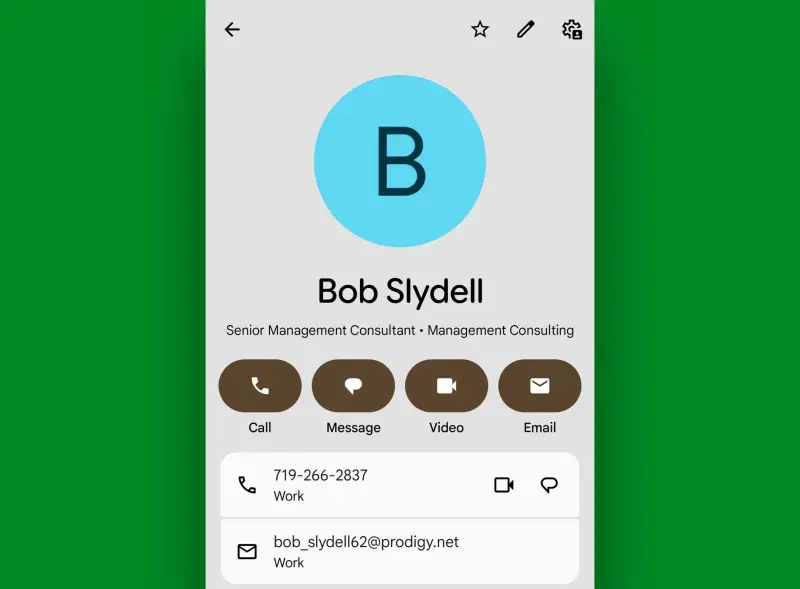
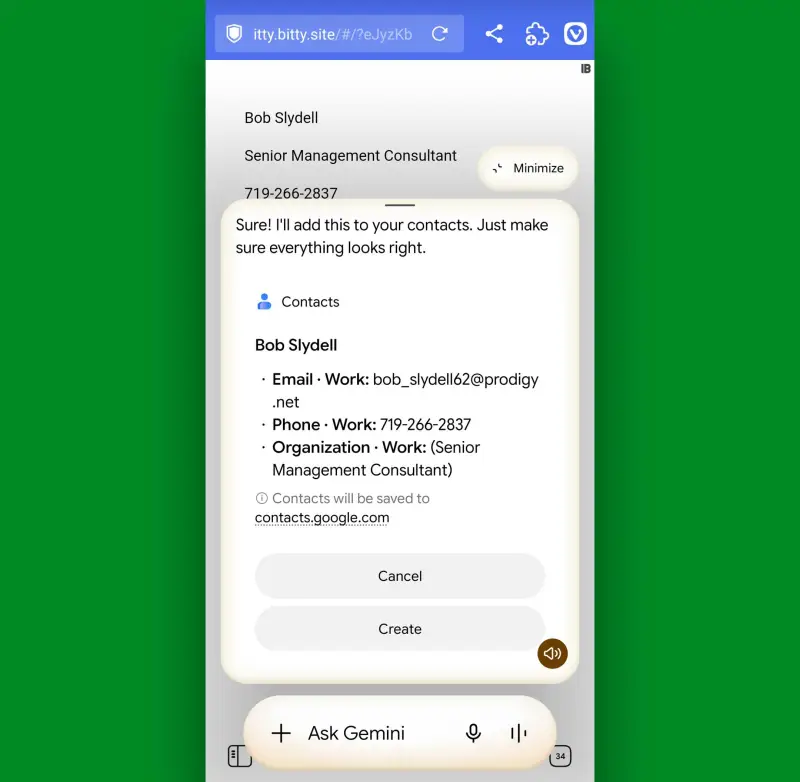
The first time, Gemini will ask for access to your contacts. After you grant that access, it can read the card and place the details it recognizes into the relevant fields. Review the proposed contact and confirm the save. The new entry then appears in Android Contacts, without a separate importing app or manual copying.
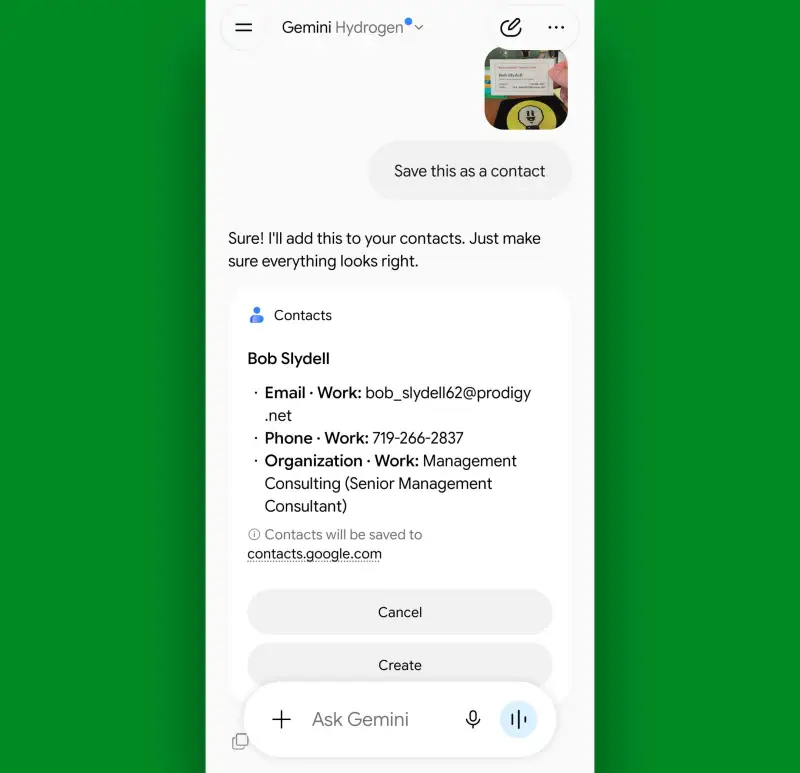
The confirmation step is useful: contact information can be easy to misread in a photo, especially when a card uses small print or an unusual layout. Check the fields before saving, and correct anything that Gemini has interpreted incorrectly. The feature handles the data entry, but the user still decides whether the resulting contact is accurate.
Use details already on your screen
The same approach works when someone’s contact information is displayed on the phone. That might be an email, a web page or another screen with a person’s details. Open Gemini, ask it to save the information you’re viewing as a contact, then review and confirm the entry.
This second route avoids a photo altogether. It’s useful when you come across a phone number or email address while reading, and want to add it to your address book without switching between apps to copy each detail separately. The task is essentially the same as scanning a card: Gemini extracts the visible information, arranges it as a contact and asks you to approve the save.
A modest feature with a clear payoff
This isn’t a complicated workflow, and that’s the point. Adding a contact is routine, but manually entering several fields can interrupt whatever else you’re doing. Gemini reduces that work to opening the assistant, describing the task and checking the result. For people who regularly collect details from cards, messages or web pages, those small savings can add up across repeated entries.
There are two practical checks before relying on it. First, Gemini needs contacts access, so the phone will request permission when you use the feature for the first time. Second, the extracted details should be reviewed before you confirm them. A clear image or readable screen makes it easier for the assistant to identify the right information, while the confirmation gives you a chance to catch mistakes.
The feature is a useful reminder that an assistant doesn’t have to take over a complicated process to help. Here, its value is narrow and easy to assess: it can move visible contact details into the right fields and leave the final save in your hands. The next time a card or screen has information worth keeping, try the workflow and check the contact before adding it to your address book.