Microsoft Graph PowerShell: When to Use New-MgGroupMember
- Tony Redmond
- 877 views
New-MgGroupMember and New-MgGroupMemberByRef both add Entra ID group members. Here’s why both exist, which is simpler, and where each applies.
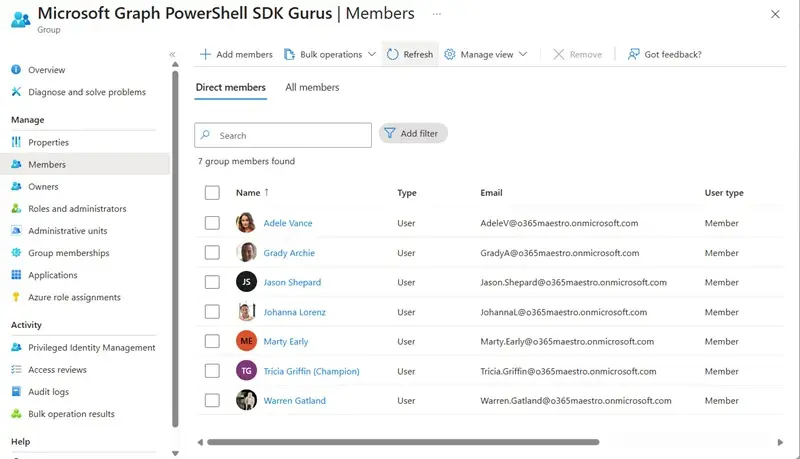
For most administrators adding a member to an Entra ID group with Microsoft Graph PowerShell, New-MgGroupMember is the simpler cmdlet to reach for. The SDK also includes New-MgGroupMemberByRef, which can perform the same addition but requires you to construct a request body. The duplication comes from the way the SDK is generated from Microsoft Graph metadata, rather than from a difference in the membership operation.
That distinction matters when choosing a command for a script or runbook. Both cmdlets add a member to a cloud managed group with static membership. Neither directly changes membership in a dynamic group: its members are determined by the group’s membership rule, so changing who qualifies means updating that rule.
Why the SDK has two addition cmdlets
Microsoft Graph exposes group membership through two operations. One updates the group’s members navigation property; the other manages a relationship through the members $ref endpoint. The Graph PowerShell SDK generates cmdlets for those operations, producing New-MgGroupMember and New-MgGroupMemberByRef.
The same pattern appears with group owners: the SDK includes New-MgGroupOwner and New-MgGroupOwnerByRef. These paired names reflect separate Graph operations, even where the practical outcome is the same. The SDK’s generated command set can therefore offer both a direct, convenient input and a command that exposes the reference operation more explicitly.
Use the object ID with New-MgGroupMember
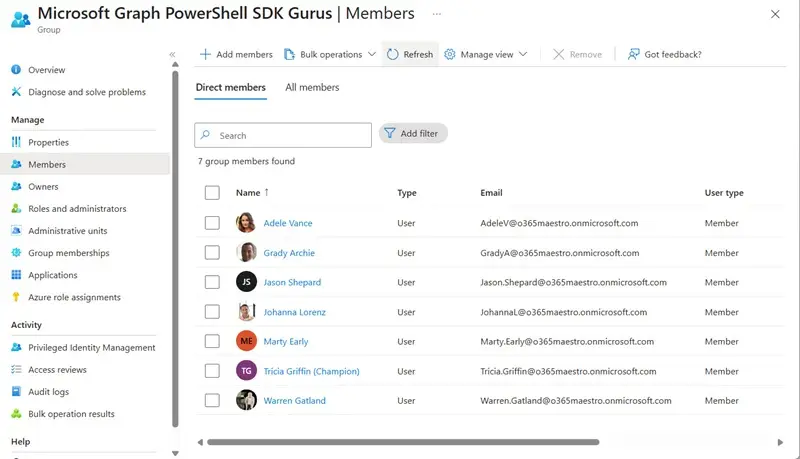
The direct cmdlet takes the group ID and the directory object ID of the member. The example below looks up a user and a group by display name, extracts their IDs, and then adds the user:
$UserId = Get-MgUser -Filter "displayName eq 'Adele Vance'" | Select-Object -ExpandProperty Id
$GroupId = Get-MgGroup -Filter "displayname eq 'Microsoft Graph PowerShell SDK Gurus'" | Select-Object -ExpandProperty Id
New-MgGroupMember -GroupId $GroupId -DirectoryObjectId $UserId
The identifier is the key input. A user principal name or another account attribute cannot be supplied in place of the directory object ID. A script that starts with a name or sign-in address must resolve that value to the object ID before calling the cmdlet.
This lookup approach also makes it useful to handle the results deliberately in production scripts. Display names are used here to illustrate the command, but the value passed to New-MgGroupMember is the resolved ID. Administrators should make sure their lookup identifies the intended user and group before running a membership change, especially when a directory contains objects with similar names.
The reference-based alternative
New-MgGroupMemberByRef needs a request body containing an @odata.id value that points to the directory object. For the user identified above, the body can be built as follows:
$MemberRef = ("https://graph.microsoft.com/v1.0/directoryObjects/{0}" -f $UserId)
$MemberInfo = @{}
$MemberInfo.Add("@odata.id", $MemberRef)
That produces a body with a property named @odata.id whose value is the Graph URL for the directory object. Pass the body and group ID to the cmdlet:
New-MgGroupMemberByRef -GroupId $GroupId -BodyParameter $MemberInfo
Microsoft’s Graph documentation for adding a member to a group uses the reference-based operation. That does not make the matching PowerShell cmdlet the preferred choice for every script. New-MgGroupMember is a convenience cmdlet: it accepts the object ID directly, while the SDK handles the request details. For a routine addition, that means less setup and a more direct command.
Which directory objects can be members?
Supported member types depend on the group. Microsoft 365 Groups accept user accounts, including guest accounts. Security groups can also contain other groups, devices, and service principals. In each case, the identifier tells Graph which directory object to add; the type of object does not change the basic distinction between the two cmdlets.
Group members and owners are relationships to other directory objects, rather than copies of those objects stored inside the group. Graph represents these relationships with dedicated $ref endpoints, which support operations on the links between groups and directory objects. The SDK’s generation process detects those endpoints and creates cmdlets for working with the relationships.
Removal uses a reference cmdlet
The cmdlet names are not perfectly symmetrical. The SDK provides Remove-MgGroupMemberByRef, but it does not provide a Remove-MgGroupMember counterpart. Graph removes a group member through the $ref relationship endpoint, so the SDK exposes the reference-based removal command. Removing an owner follows the same pattern: use Remove-MgGroupOwnerByRef.
For administrators building a workflow, this means the easiest addition command and the removal command may have different shapes. Scripts should account for the required inputs for each operation instead of assuming that a removal cmdlet exists with the same naming pattern as the addition cmdlet.
Exchange managed groups need Exchange cmdlets
Neither addition cmdlet applies to distribution groups or mail-enabled security groups. Exchange Online controls membership for those objects, so changes must be made with Exchange cmdlets such as Add-DistributionGroupMember. Before adapting an Entra ID group script, check which service manages the target group; a Graph membership command is not interchangeable with an Exchange membership operation.
The practical default for static Entra ID group membership is straightforward: resolve the target object’s ID and use New-MgGroupMember when possible. Keep the reference-based version in mind when working directly with the Graph operation or its request body, and use the matching removal cmdlet when taking a member out. The SDK’s documentation may continue to gain examples through contributions to its public repository, but administrators can already choose the simpler command for common additions.