Teams Meeting Archives: Copilot Memory, Retention and Admin Controls
- Tony Redmond
- 351 views
Teams will create AI meeting archives for Copilot, subject to policy and meeting conditions. Admins should review retention and learn how to locate or remove archive files.

Teams will retain structured meeting context for Copilot
Teams is adding AI-generated meeting archive files to help Copilot, Facilitator and other Microsoft AI tools answer questions about past meetings. The files capture decisions, assigned actions, summaries and supporting context in a structured format. When an AI response draws on an archive, Teams cites it like another file.
Microsoft announced the feature in message center notification MC1429018, last updated 21 September 2026, and in Microsoft 365 roadmap item 558933. The deployment schedule has shifted: tenants in targeted release are expected to see it in early November 2026. General availability is scheduled to start in early December 2026 and finish worldwide in early January 2027.
Access has limits. Only meeting participants can benefit from the generated insights, and Copilot can use an archive only for users in the same tenant as the meeting organizer. Teams creates an archive only when the meeting meets several conditions:
- Transcription is enabled.
- At least one participant has a Microsoft 365 Copilot licence.
- The meeting option “Allow Copilot and Facilitator” is set to “During and after the meeting.”
- The meeting does not have an encrypted sensitivity label.
Teams also skips archive generation for meetings with end-to-end encryption or settings that restrict copying or forwarding. Admins should check these conditions when investigating why a meeting has no archive.
Review policy and retention before rollout
Meeting policies control archive generation. The setting is available in the Teams admin center and is enabled by default. Admins can also configure it with Teams PowerShell module 8.0 or later. This command enables archive generation under the default policy and sets the expiration period to 180 days:
Set-CsTeamsMeetingPolicy -Identity Global -AllowMeetingKnowledgeGeneration $True -MeetingKnowledgeExpirationDays 180
The default expiration period is 1825 days. That may be longer than an organization needs for meeting context, so Teams administrators should decide how long archives remain useful and set a period that fits their data lifecycle. Purview retention policies take precedence over the expiration period in Teams meeting policies. Archives can be processed by retention policies configured for SharePoint classic and communication sites.
PowerShell can locate and remove an archive
Microsoft documents two cmdlets for archive management: Get-AIGeneratedKnowledgeContainer returns the SharePoint Embedded container URL associated with a meeting, while Remove-AIGeneratedKnowledge removes that meeting’s archive. Both use the meeting chat thread ID as the main parameter.
To get the thread ID, copy the meeting link from its properties and take the identifier between /l/chat/ and /conversations. For example, this meeting link:
https://teams.microsoft.com/l/chat/19:meeting_NmNjMGJlODUtMGMyYi00ZTc5LTkyYzMtNmNiOWQxYTMyNDk1@thread.v2/conversations?context=%7B%22contextType%22%3A%22chat%22%7D
contains this thread ID:
19:meeting_NmNjMGJlODUtMGMyYi00ZTc5LTkyYzMtNmNiOWQxYTMyNDk1@thread.v2
Use it with the removal cmdlet as follows:
Remove-AIGeneratedKnowledge -ThreadId
"19:meeting_NmNjMGJlODUtMGMyYi00ZTc5LTkyYzMtNmNiOWQxYTMyNDk1@thread.v2"
AI generated knowledge has been successfully removed.
There is a practical limitation: the cmdlet has been observed to accept an arbitrary value and return a success message. Treat that response as insufficient confirmation that the intended archive was removed.
To find the storage container, run:
Get-AIGeneratedKnowledgeContainer -ThreadId '19:meeting_NmNjMGJlODUtMGMyYi00ZTc5LTkyYzMtNmNiOWQxYTMyNDk1@thread.v2'
The result is a SharePoint Embedded container URI. It may take several hours after a meeting ends for the archive to become available. Teams provisions 200 SharePoint Embedded containers for meeting artifacts and distributes archive files among them. Admins can use the SharePoint Online management module’s Get-SPOContainer cmdlet to inspect container details after identifying the matching container URL.
Direct access to the files through the Graph fileStorageContainer API is restricted to the application that owns the container. For meeting archives, that application is Teams. The files are therefore not generally accessible for direct inspection through that API.
Purview eDiscovery offers an export path
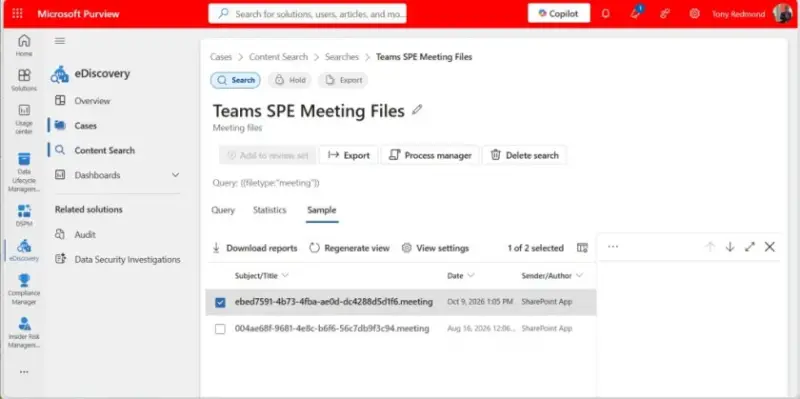
Purview eDiscovery can find and export archives stored in SharePoint Embedded containers. Create a content search with SharePoint Online sites as the search source and use:
Filetype:"meeting"
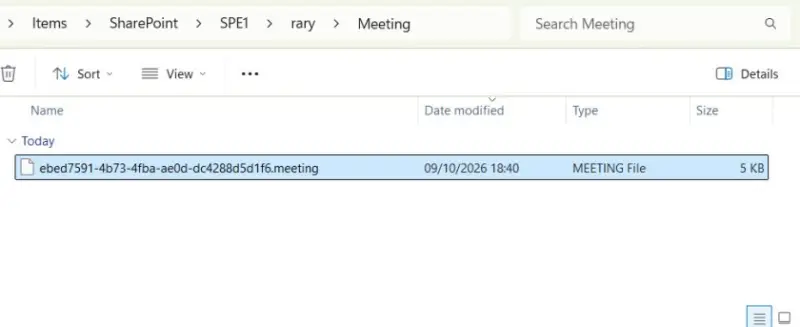
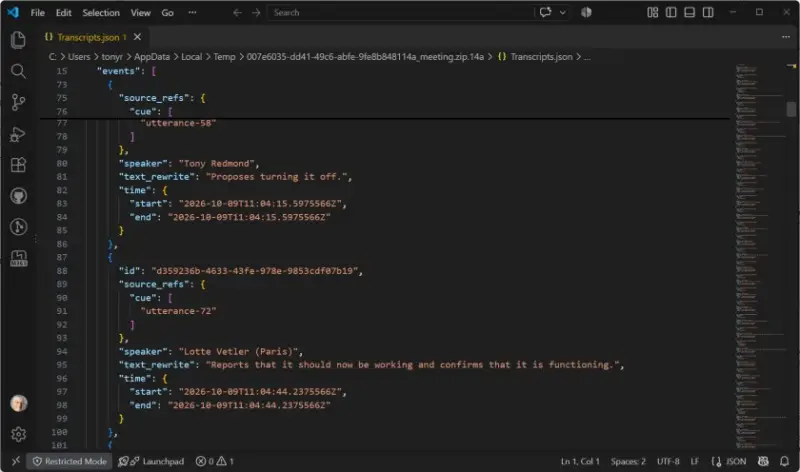
The preview feature cannot display an archive’s contents, but eDiscovery can export matching files in a ZIP package with summary information. The archives are compressed, not encrypted. Microsoft describes them as AI-generated information intended to give Copilot context from earlier meetings. A compressed archive contains a transcripts.json file with the generated information and captured participant remarks.

For administrators, the main work is to decide how long these files should persist, confirm which meetings qualify, and understand the available discovery and removal paths. The default five-year expiration makes retention review a useful part of preparing for the rollout.