Fabric Dataflows Gen2 Can Send Per-Recipient Sales Emails Through a Pipeline
- Chris Webb
- 466 views
A parameterized Dataflow Gen2 can send tailored emails in a Fabric pipeline, though sequential runs make this approach slow for larger recipient lists.
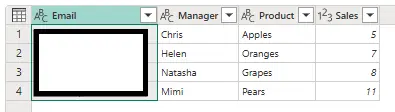
Fabric Dataflows Gen2 can send a sales email tailored to each recipient when a Fabric pipeline runs a parameterized dataflow in a loop. The method combines the dataflow’s Send Email action with a ForEach activity, so each iteration supplies an email address and the dataflow filters its sales data for that recipient.
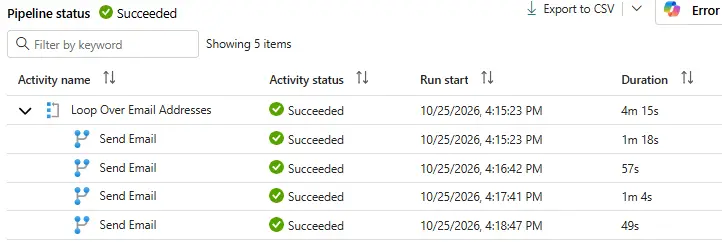
It’s a practical option for a small number of emails when the reporting logic already lives in Power Query. It’s less suitable for bulk distribution: the example ran slowly, and adding concurrency caused it to fail.
Filter the dataflow to one recipient
The setup starts with a Dataflow Gen2 query named Sales, containing sales records and an Email column. A text parameter named EmailAddress filters that query to the row whose Email value matches the parameter. That single-row result is then used to build the message.

The Send Email destination uses the parameter as its recipient and constructs a short message from fields in the filtered row. In this example, the message addresses the manager by name and reports the product and sales value:
AlertAction.Send(
 MicrosoftOutlook.Actions(),
 [
 To = {EmailAddress},
 Subject = "Sales Report",
 Body = "Hi "
 & Sales{0}[Manager]
 & ", sales of "
 & Sales{0}[Product]
 & " were "
 & Number.ToText(Sales{0}[Sales])
 ]
)
The expression references Sales{0}, which means it expects the Sales query to return a table with one row. The parameter-driven filter is what makes that assumption work for each iteration. If the filter returns no matching row, or more than one, this expression may not produce the intended message; the example does not describe additional handling for those cases.
The dataflow diagram shows the query, filtering and email destination connected in the flow:

For the pipeline to supply a value at run time, the dataflow option “Enable parameters to be discovered and overriden for execution” must be enabled. After setting that option, save the dataflow without running it. The parameter will then be available to configure in the pipeline’s Dataflow activity.

Pass each address from a Fabric pipeline
Create a Fabric pipeline with a ForEach activity and place a Dataflow activity inside it. In the example, the ForEach activity’s Items field contains an array of addresses:
@createarray('[email protected]','[email protected]')Within the Dataflow activity, select the dataflow and map the current ForEach value to the EmailAddress parameter using @item(). On each iteration, the pipeline passes one address, the dataflow filters Sales to the corresponding row, and the Send Email action creates a message using that row’s manager, product and sales value.
The example checks the Sequential option in the ForEach settings. That keeps the iterations in sequence, which matters given the reported behavior when concurrency was introduced. The completed pipeline configuration is shown here:

After the pipeline ran, a recipient listed in the Sales data received the generated email:

Keep the workload small
The test confirms that a pipeline can use a parameterized Dataflow Gen2 to send a different message to each address in its list. But the sequential approach took time, and attempts to add concurrency failed. That makes this a better fit for a handful of recipients than a large distribution list. Teams considering it should account for the time required to process each loop iteration and avoid assuming that parallel execution will work.
There are other ways to distribute Power BI and Fabric reports, including Power BI report subscriptions and paginated reports. The dataflow approach may suit teams that want to keep recipient filtering and message construction in Power Query, but it brings a pipeline run into the sending process.
The email body in this example is plain text assembled with an M expression. A roadmap item for HTML formatting could make the same pattern useful for richer report layouts; the roadmap also points to Data Visuals as a related feature. Until that formatting is available in the email action, the demonstrated method is best treated as a simple, small-scale way to send recipient-specific data from a dataflow.
For administrators, the key checks are straightforward: confirm the email parameter is enabled for execution, ensure the filter returns the expected single row for each address, and keep the ForEach workload within the scale that sequential runs can handle.