Power Pages Modern Lists: Customize Rows, Columns and Record Details with the Client API
- Michel Mendes
- 714 views
Power Pages’ Client API can style modern list rows and cells, adjust columns, and load record details when users select a row.
Power Pages modern lists now have a supported route for customization: the Client API. For portal teams, that means they can add useful behavior to a list without relying on scripts that directly manipulate its rendered HTML, as was common with classic lists.
The default grid may be enough for straightforward data display, but it can fall short when users need to scan priorities, distinguish records by status, or see more information than the visible columns provide. The Client API exposes list, column, row, and cell objects, along with events for data loading and user clicks. Those pieces let a developer change presentation and respond to interactions while leaving the underlying Dataverse values untouched.
Choose the right level of control
At the list level, the IList object can identify a modern list through list.isModern, show or hide the list with list.setVisible(true) or list.setVisible(false), and return its HTML container through list.getHtmlElement(). The container reference is useful when a page needs an additional interface element, such as a details panel placed beneath the grid.
Columns can be adjusted independently. An IColumn can receive a different header through column.setHeader('New Title'), a tooltip through column.setTooltip('Help text'), or a visibility setting through column.setVisible(false). These options help adapt a shared list for a particular audience or task without changing the stored records.
Rows provide access to both data and record state. Use row.getValue('schema_name') for a raw Dataverse value and row.getDisplayValue('schema_name') for its formatted display string. row.getPrivileges() exposes the user’s write and delete privileges, while row.getState() returns the record’s state and status codes. Rows can also receive CSS classes and inline styles, or be hidden with row.setVisible(false).
Cell methods operate at a finer level. cell.setDisplayText('Friendly Value') changes what the grid displays without changing the Dataverse record. cell.setStyle() can apply visual formatting such as font weight, padding, and background color. That separation matters: a display adjustment can make information easier to read, but it should not be mistaken for a data update.
Use events to time the customization
The loaded event runs after the grid fetches and renders data. It also runs again after actions such as sorting, filtering, and paging, making it the natural place to apply formatting that needs to match the rows currently on screen.
The rowclick event lets a handler respond to a selected row and read its record ID with e.row.getId(). The cellclick event fires for a click on a specific cell and takes precedence over rowclick for that selection. Teams should choose the event that matches the interaction they want, especially if both row and cell actions are being added.
Example: priority badges and a ticket detail panel
The following example combines row selection, a priority display, and a details panel. It targets a custom Support Tickets list with the Dataverse table pnp_supporttickets and columns including pnp_name, pnp_details, and pnp_priority. Replace those schema names and the choice values with the ones used by the relevant environment.
Add the script as the list’s Custom JavaScript. It waits for Microsoft.PowerPages.onPagesClientApiReady, finds a modern list on the current page, then adds a selection style and a panel beside the list container. When a user clicks a row, the handler highlights it and requests the ticket name and details through the Power Pages Web API. The helper uses window.webapi.safeAjax when available and otherwise obtains a verification token before sending the request.
The example also maps four priority choice values to badge colors. During each loaded event, it reapplies the selected-row highlight, adds a tooltip to the name column, and styles each priority cell whose value matches the map. The choice numbers shown are specific to the example’s Dataverse setup; they need to match the actual values in the target table.
function safeAjax(options) {
  if (window.webapi && window.webapi.safeAjax) {
    return window.webapi.safeAjax(options);
  }

  const deferred = $.Deferred();
  shell.getTokenDeferred().done(function (token) {
    options.headers = Object.assign({}, options.headers, {
      "__RequestVerificationToken": token
    });
    $.ajax(options).done(deferred.resolve).fail(deferred.reject);
  }).fail(function () {
    deferred.rejectWith(this, arguments);
  });

  return deferred.promise();
}

Microsoft.PowerPages.onPagesClientApiReady(async function ($pages) {
  const list = $pages.currentPage.lists.getAll().find(l => l.isModern);
  if (!list) return;

  let panel = null;
  let selectedTicketId = null;

  if (!document.getElementById("selected-row-style")) {
    $("<style id='selected-row-style'></style>")
      .text(
        ".selected-row, .selected-row > * { background-color: #e5f1fb !important; }" +
        ".selected-row { box-shadow: inset 3px 0 0 #0078d4 !important; }"
      )
      .appendTo(document.head);
  }

  function highlightSelectedRow() {
    list.rows.forEach((row) => {
      if (row.getId() === selectedTicketId) {
        row.addClassName("selected-row");
      } else {
        row.removeClassName("selected-row");
      }
    });
  }

  function getPanel() {
    if (!panel || !panel.closest("body").length) {
      panel = $("<div class='ticket-details-panel'></div>").css({
        margin: "16px 0",
        padding: "16px",
        background: "#f3f2f1",
        borderRadius: "8px",
        borderLeft: "4px solid #0078d4"
      });
      $(list.getHtmlElement()).after(panel);
    }
    return panel;
  }

  list.on("rowclick", async (e) => {
    const ticketId = e.row.getId();
    selectedTicketId = ticketId;
    highlightSelectedRow();

    const targetPanel = getPanel();
    targetPanel.empty().append(
      $("<p class='text-muted'></p>").text("Loading details...")
    );

    try {
      const ticket = await safeAjax({
        type: "GET",
        url: "/_api/pnp_supporttickets(" +
          encodeURIComponent(ticketId) +
          ")?$select=pnp_name,pnp_details",
        contentType: "application/json"
      });

      if (selectedTicketId === ticketId) {
        targetPanel.empty().append(
          $("<h4></h4>").text(ticket.pnp_name || "Ticket Details"),
          $("<p></p>").text(
            ticket.pnp_details || "No details provided for this ticket."
          )
        );
      }
    } catch (err) {
      console.error("Could not load details", err);
      if (selectedTicketId === ticketId) {
        targetPanel.empty().append(
          $("<p class='text-danger'></p>")
            .text("Could not load ticket details.")
        );
      }
    }
  });

  const priorityStyles = {
    192350000: { backgroundColor: "#fde7e9", color: "#a80000" },
    192350001: { backgroundColor: "#fff4ce", color: "#8a5a00" },
    192350002: { backgroundColor: "#e5f1fb", color: "#004578" },
    192350003: { backgroundColor: "#dff6dd", color: "#0e5a0e" }
  };

  list.on("loaded", () => {
    highlightSelectedRow();

    const titleColumn = list.getColumn("pnp_name");
    if (titleColumn) {
      titleColumn.setTooltip("Select a row to view full details below");
    }

    list.rows.forEach((row) => {
      const badgeStyle = priorityStyles[row.getValue("pnp_priority")];
      if (badgeStyle) {
        row.getCell("pnp_priority")?.setStyle({
          ...badgeStyle,
          fontWeight: "bold",
          padding: "4px 12px",
          borderRadius: "12px",
          width: "fit-content",
          lineHeight: "1.4"
        });
      }
    });
  });
});
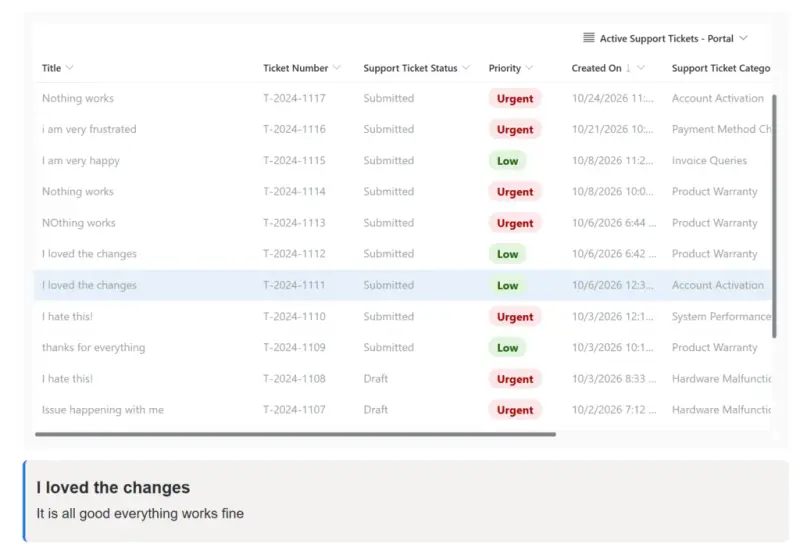
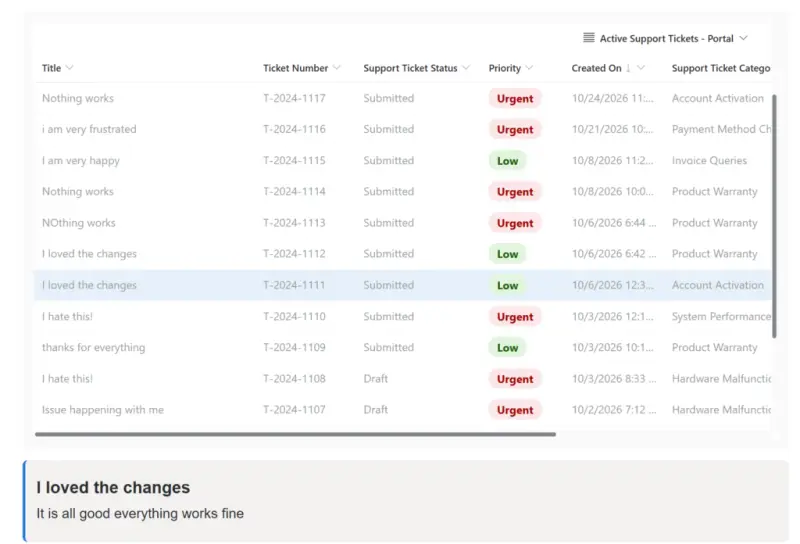
The resulting grid can show color-coded priorities and load the selected ticket’s details below the list. The selection check before rendering the response also avoids displaying an older request if a user clicks another row while the first request is still in progress.
Before adapting the pattern, confirm the list’s schema names, choice values, and Web API access for the fields being requested. Microsoft documents the list objects and events in its Power Pages Client API lists reference. With those details aligned, the API provides a practical way to make a modern list more useful without changing its Dataverse records.