Secure Fabric Gen2 Dataflow API Keys with Azure Key Vault
- John Kerski
- 803 views
Use a Fabric workspace identity and pipeline to retrieve API secrets from Key Vault and pass them to Gen2 dataflows at runtime.
Keeping an API key out of Power Query takes more than moving it to a different field. In Microsoft Fabric, a Gen2 dataflow can receive a credential at runtime from a pipeline, which retrieves it from Azure Key Vault. That gives administrators a way to keep the key out of the dataflow’s code and default parameter value while still using it to authenticate an API request.
The pattern has several parts to configure: a Key Vault secret, a workspace identity with permission to read it, an exposed Gen2 dataflow parameter, and a pipeline that passes the retrieved value to the dataflow. Secure input and output settings help keep the value out of pipeline activity logs. The credential still needs careful handling inside the dataflow, where it exists as a string during execution.
Where this pattern fits
This setup is useful when a dataflow must call an authenticated endpoint that needs an API key or bearer token, or a custom service without an OAuth connection supported by Fabric. It can also help teams run the same dataflow in different environments while supplying each environment’s own credential.
Use a native OAuth connection when Fabric provides a suitable secure connector for the source. The Key Vault and pipeline approach fills gaps where a first-class connection isn’t available; it doesn’t replace one.
Gen1 dataflows don’t support the runtime parameter injection this pattern depends on. With Gen1, a key referenced in Power Query may be stored as plain text in the dataflow. Gen2 supports parameters that a pipeline can override when it runs the dataflow.
Requirements and information to collect
You’ll need a Fabric workspace with Gen2 dataflow and pipeline authoring enabled, workspace administrator rights, and Fabric capacity that supports pipelines and dataflows. Some AI features in Gen2 require paid capacity, but public parameters don’t depend on Copilot licensing.
You’ll also need an Azure Key Vault that the workspace can reach, and permission to grant the workspace identity access to that vault. Before wiring up the pipeline, collect the Key Vault URI and secret name, plus the workspace identity’s client ID, tenant ID, and client secret. Store these details securely while you configure the connection.
Store the API credential in Key Vault
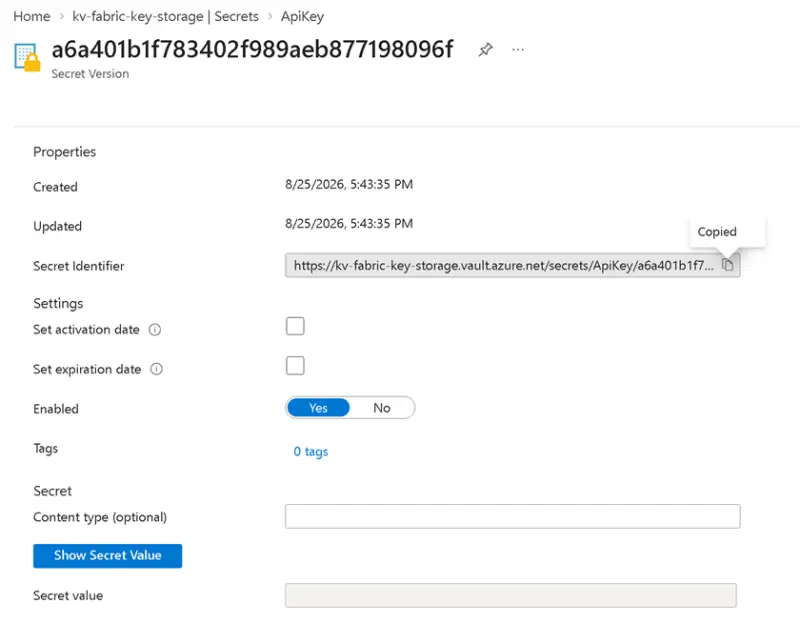
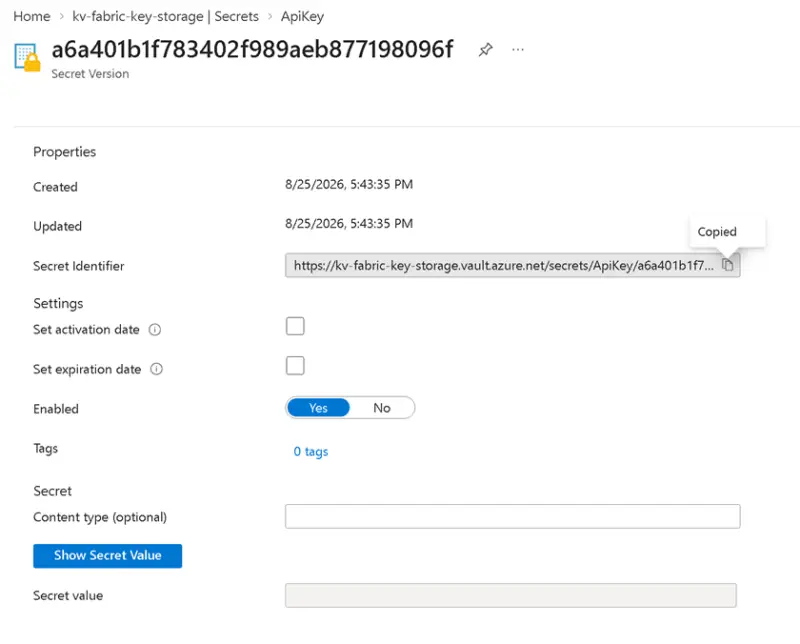
Create a Key Vault secret for the API key or token. This step takes place outside Fabric. The Key Vault creation walkthrough is available in Microsoft’s Azure Key Vault documentation; instructions for adding a secret are available here.
Use a predictable vault name. A prefix such as kv- followed by a purpose, for example kv-fabric-key-storage or kv-dataflow-keys, makes the resource easier to identify. After creating the secret, copy its identifier and record the vault name and secret name. You’ll also need the vault URI, shown on the Key Vault Overview page.

Give the workspace identity access
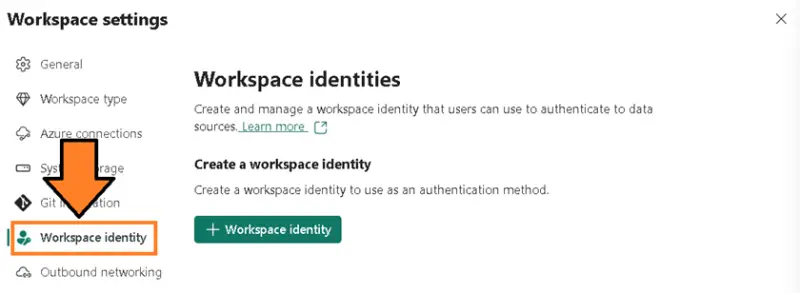
The pipeline needs permission to read the secret. Use the Fabric workspace identity for this access. In the workspace, open Workspace Settings, go to Workspace Identity, and select + Workspace Identity to create it.
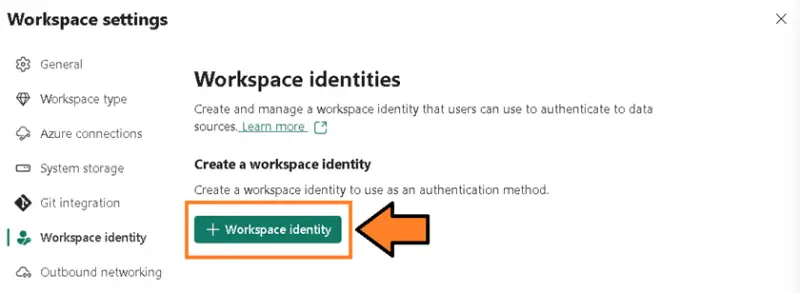
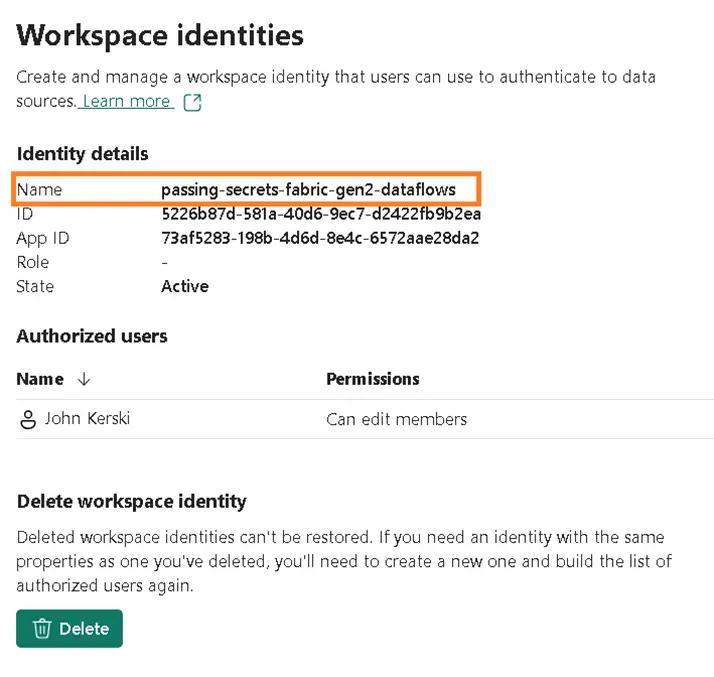
The identity can take a few seconds to appear, and its Name field may initially be blank. Refresh the browser and return to the identity settings; the name should then match the workspace.
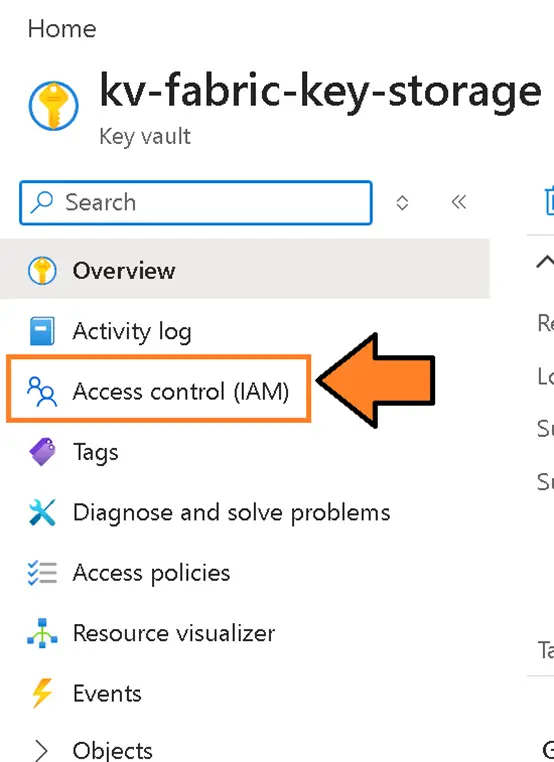
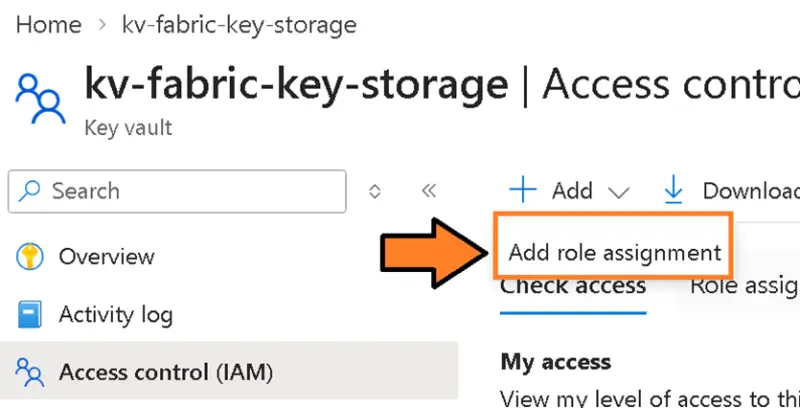
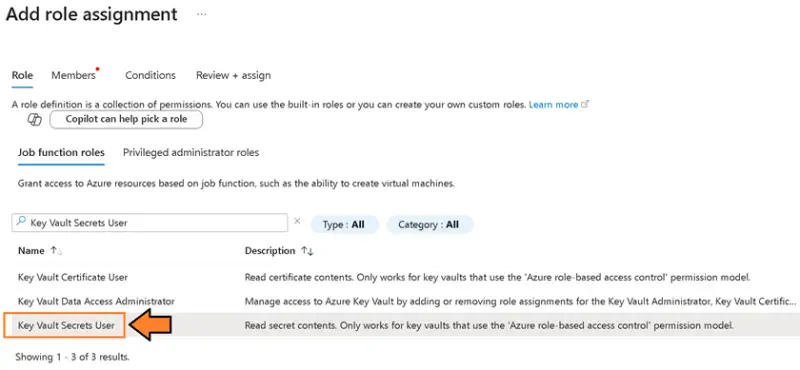
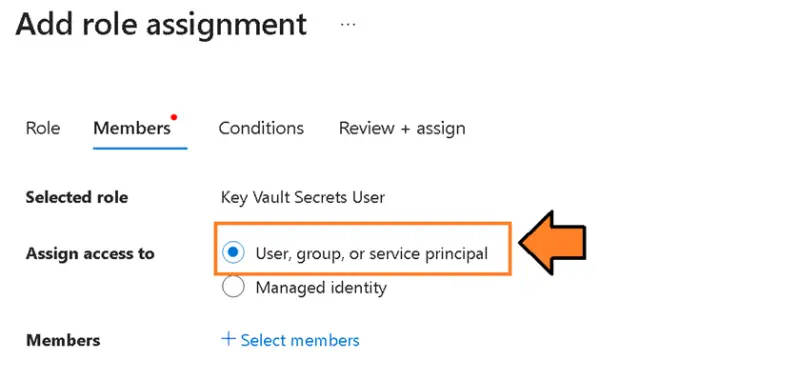
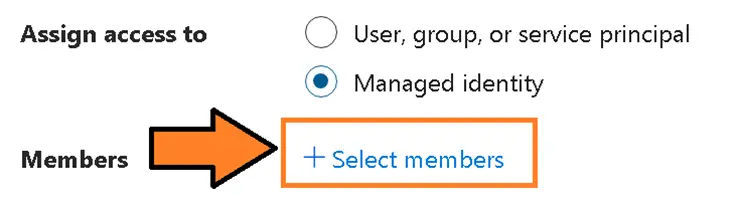
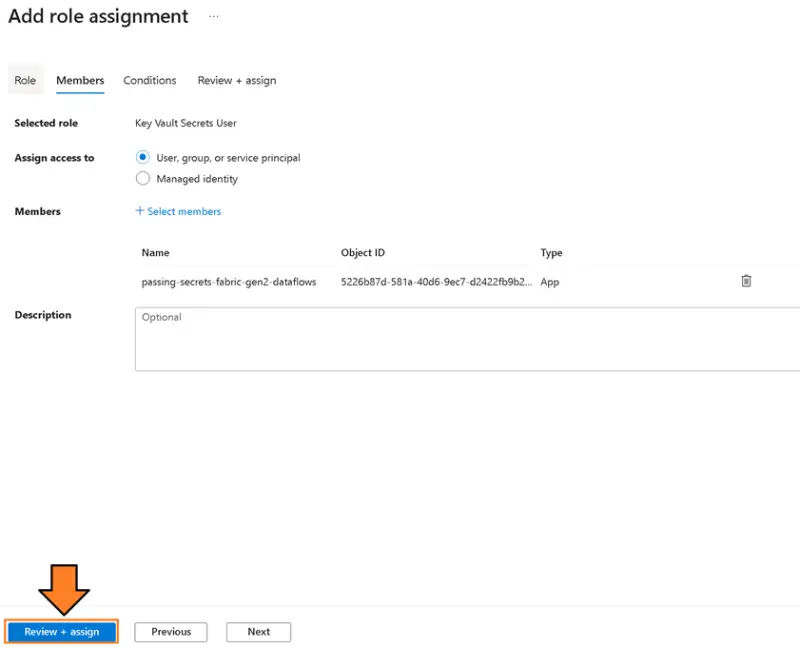
Next, open the vault in the Azure portal and go to Access control (IAM). Choose Add, then Add Role Assignment. Select the Key Vault Secrets User role. In Members, select User, group, or service principal, then use Select members to find the workspace identity by its workspace name. Finish with Review + assign.
Record the identity details
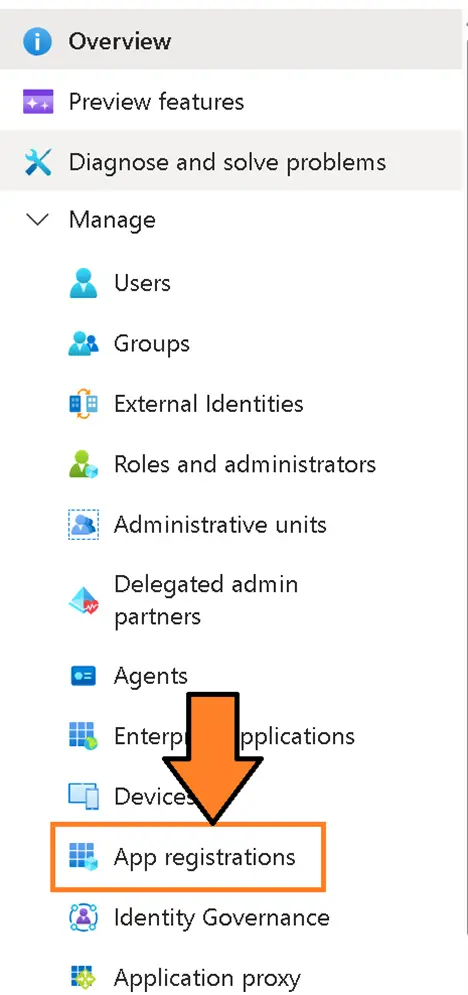
A workspace identity is a service principal in Microsoft Entra. To find its application details, open App registrations from the Manage section in Microsoft Entra. Under All Applications, search for the workspace name and select the matching entry.
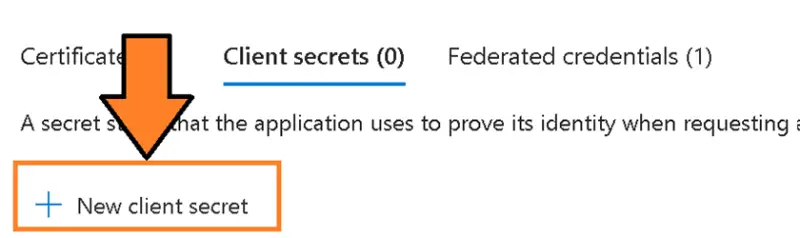
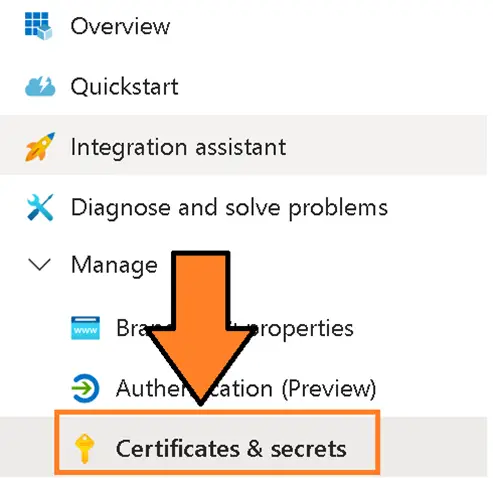
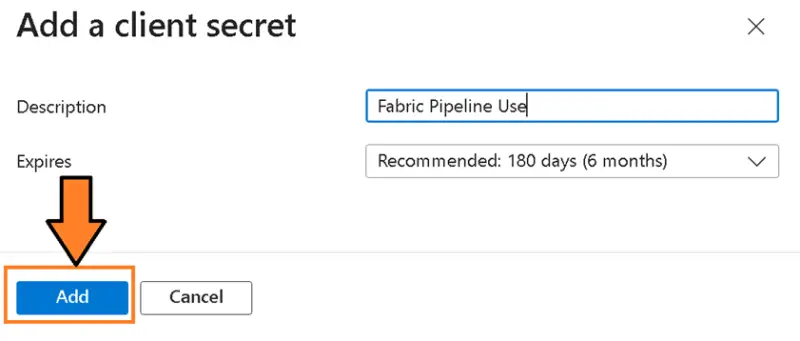
Copy the Client ID and Tenant ID from the application overview. Then open Certificates and Secrets, select Client secrets, and choose + New Client Secret. Give the secret a descriptive name, such as Fabric Pipeline Use, and set its expiration period.
Copy the new client secret value while it’s displayed. It can’t be retrieved from this page after you navigate away. Keep it with the client ID and tenant ID in a secure location for the connection setup. Set a calendar reminder before the expiry date; if the credential expires without being replaced, the pipeline can stop retrieving the Key Vault value.

Create the Gen2 dataflow parameter
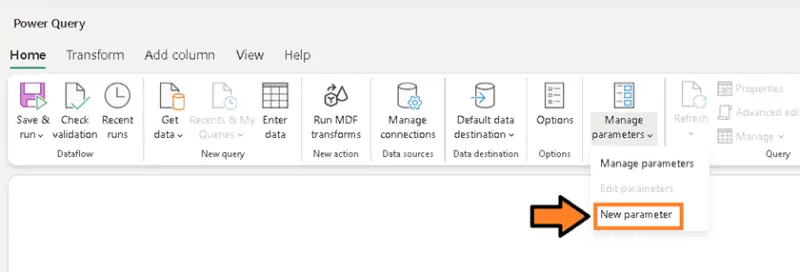
In the Fabric workspace, create a Dataflow Gen2. In Power Query, select Home > Manage parameters > New parameter. Name the parameter API_SECRET, set its type to Text, and use a non-sensitive default such as placeholder. The parameter can be optional while you build the dataflow; mark it required when you connect it to the pipeline so a missing runtime value causes the run to fail.
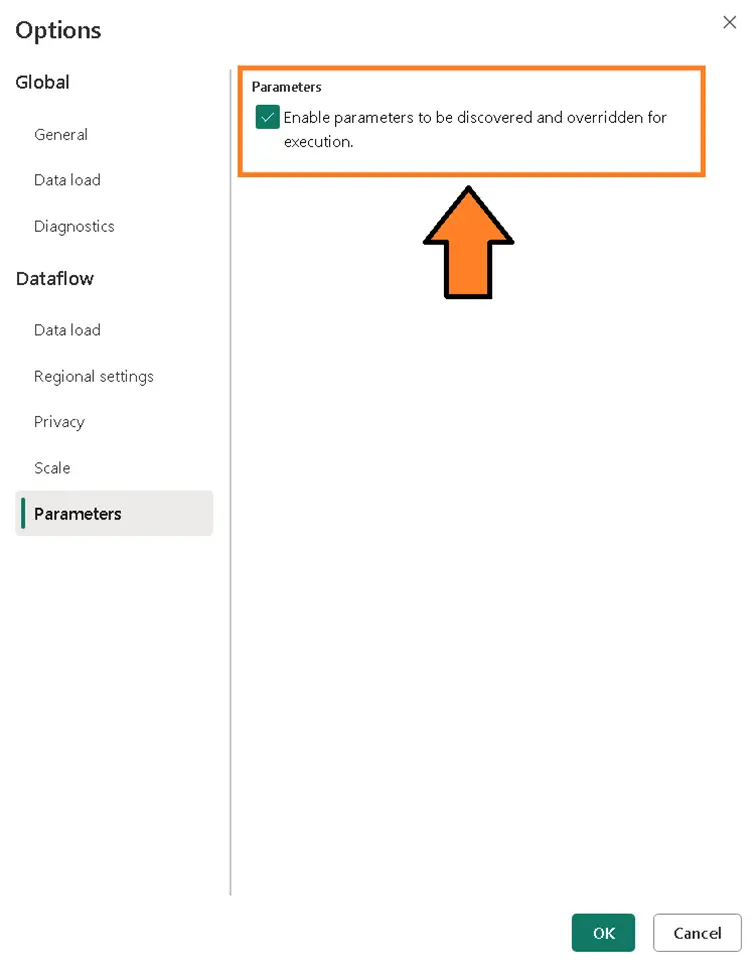
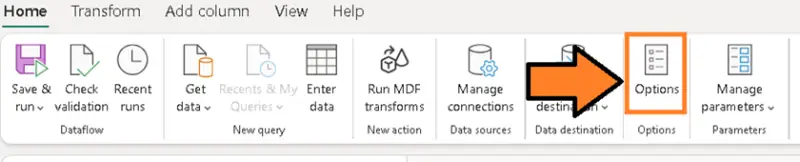
For the pipeline to discover and override the parameter, open Home > Options, go to Parameters, and enable Enable parameters to be discovered and override for execution. Save the dataflow after changing this setting. The pipeline won’t surface the parameter until this feature is enabled and the dataflow is saved.
Use Save to store the dataflow configuration. The parameter can then be referenced in Power Query wherever the API call needs authentication. For an endpoint that expects a key in a request header, the query can follow this pattern:
let
    Source = Web.Contents(
        "https://api.example.com/v1/data",
        [
            Headers = [#"x-api-key" = API_SECRET]
        ]
    ),
    Json = Json.Document(Source)
in
    Json
API_SECRET is a parameter reference here, not a literal credential. The pipeline supplies its value when the dataflow runs.
Build the pipeline to retrieve and pass the secret
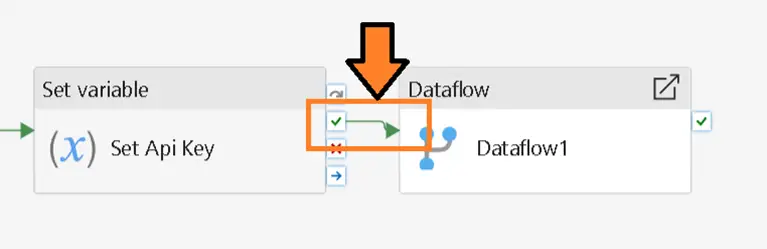
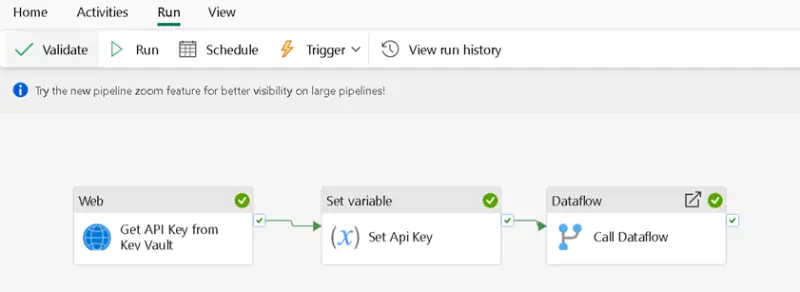
Create a pipeline in the same workspace. Its sequence is straightforward: a Web Activity reads the secret from Key Vault, a Set Variable activity captures the returned value, and a Dataflow activity passes that variable into the Gen2 parameter.
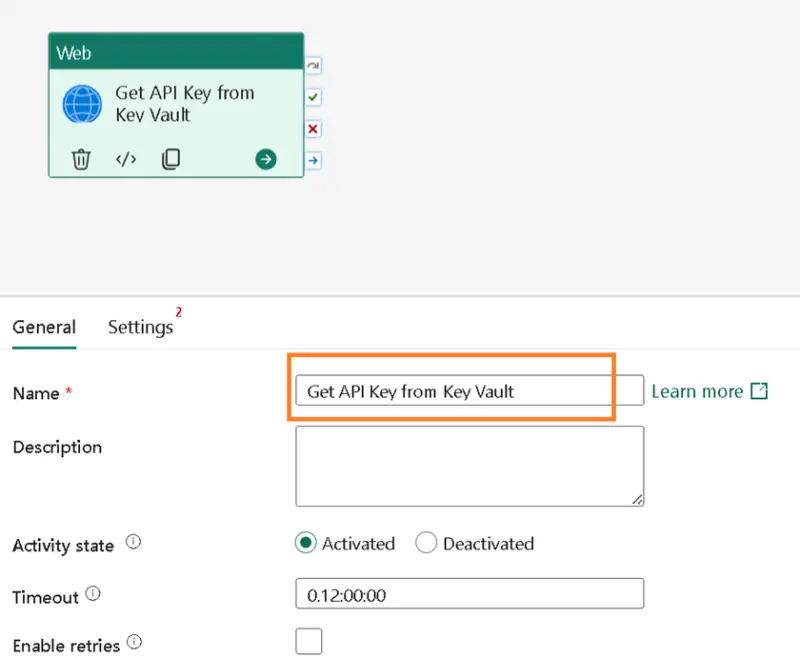
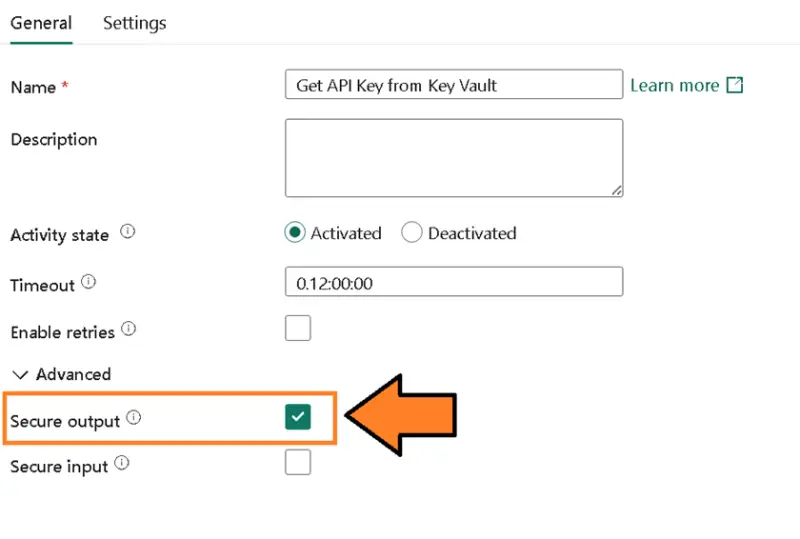
Add a Web Activity and give it a descriptive name. In Advanced, enable Secure Output so the retrieved value is hidden from the activity output. In Settings, open the connection menu, choose Browse all, and select Web v2 under New Sources.


Configure the connection with the vault and identity details you recorded:
| Property | Value |
|---|---|
| Base URL | The Key Vault URI |
| Token Audience URL | https://vault.azure.net |
| Authentication Kind | Service Principal |
| Tenant ID | The saved Tenant ID |
| Service principal client ID | The saved Client ID |
| Service Principal Key | The saved Client Secret |
| Privacy Level | Organizational |
Select Connect. Back in the Web Activity settings, set Relative URL to /secrets/{Secret Name}?api-version=7.4, replacing {Secret Name} with the Key Vault secret’s name. For example, if the secret is named ApiKey, use that name in the path.
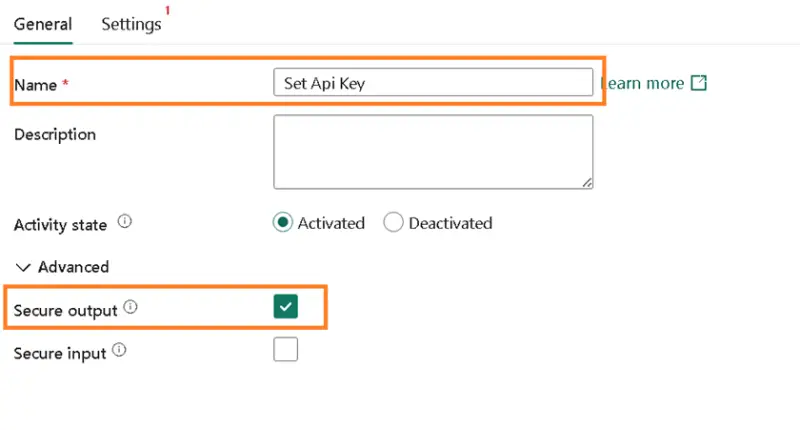
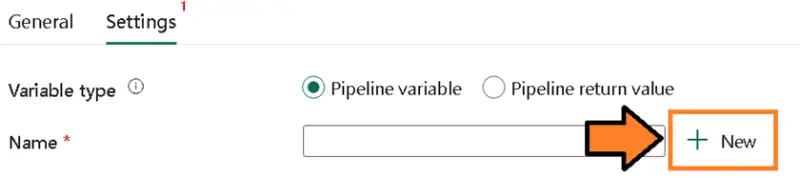
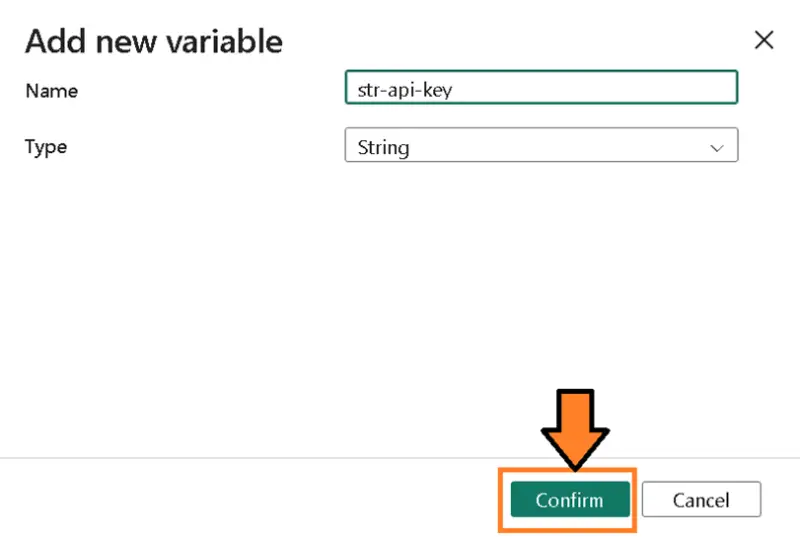
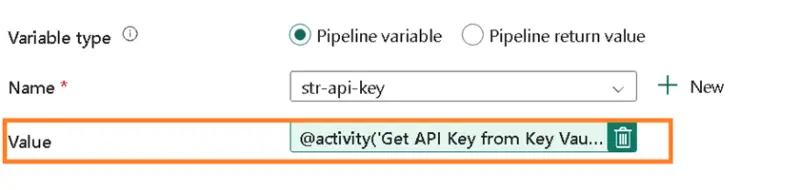
Add a Set Variable activity and connect it after the Web Activity. Give it a clear name, enable Secure Output, then use Settings > + New to create a variable. Keep the variable type as string. Set its value to the Web Activity’s returned secret:
@activity('WebActivityName').output.valueReplace WebActivityName with the actual activity name. For an activity named Get API Key from Key Vault, the expression is @activity('Get API Key from Key Vault').output.value.

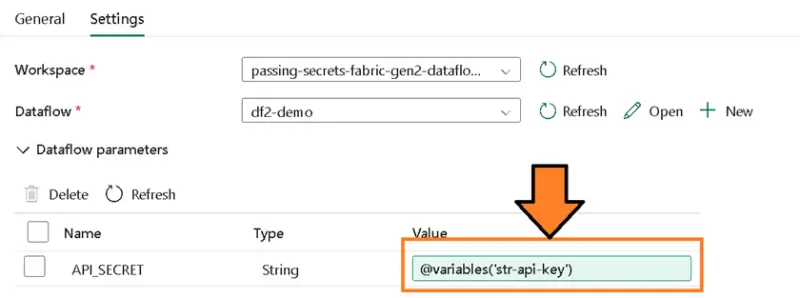
Finally, add a Dataflow activity and connect it after Set Variable. Give the activity a descriptive name and enable Secure Input. In Settings, select the Gen2 dataflow, expand Dataflow parameters, and map the API_SECRET parameter to the pipeline variable. If the variable is named str-api-key, enter:
@variables('str-api-key')Check that the expression uses the variable’s name, not the Set Variable activity’s name.
Run checks and handle the credential carefully
Run the pipeline and inspect its activity status. A successful run should retrieve the Key Vault value and allow the dataflow to authenticate. If the run fails, check that the workspace identity has the Key Vault Secrets User role, that the dataflow parameter is enabled for external discovery and override, and that the dataflow was saved after that setting was enabled. Confirm the relative URL includes ?api-version=7.4 and that the token audience is set to https://vault.azure.net.
Required parameters are a useful safeguard for API credentials: the run fails when the pipeline doesn’t supply a value. Optional parameters use their default value instead, which can hide a broken Key Vault step or cause an authentication failure later in the dataflow.
Secure Output on the Web and Set Variable activities, along with Secure Input on the Dataflow activity, helps mask the value in pipeline logs and activity details. It doesn’t prevent the dataflow from exposing the credential if a query writes it to a table or returns it as a result. Treat the parameter as a runtime credential throughout the query.
During development, entering a secret directly into the parameter can make it easier to test a query without running the pipeline each time. If you do this, use a separate development secret, replace the parameter default with a placeholder before using the pipeline, and expire the development secret when finished.
Before syncing a dataflow through Fabric Git Integration, check that its parameter default contains only a placeholder. A real key in the default value can be stored as plain text in the repository. The same check belongs in a deployment review: confirm the pipeline supplies the runtime value and the dataflow doesn’t save or return it.
The pattern adds configuration steps, but it gives administrators a clear path from Key Vault to an API request: grant the workspace identity read access, retrieve the secret in a pipeline, and inject it into a Gen2 parameter at execution time. The key operational checks are identity permissions, parameter exposure, secure activity settings, and a placeholder default value.